
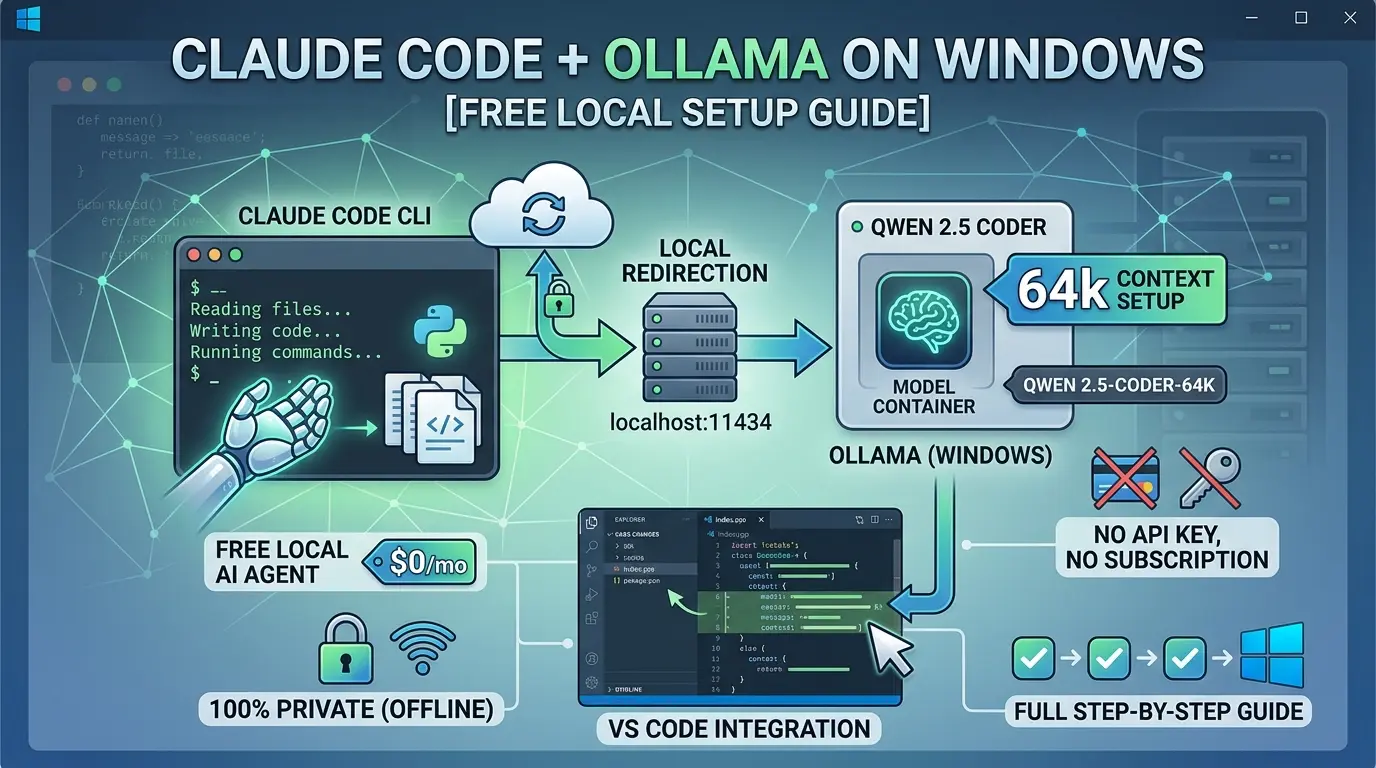

Most developers who try Claude Code hit the same wall almost immediately: a login screen asking for a Claude subscription or an Anthropic API key. If you want serious coding assistance, the kind that reads your files, writes code, and runs terminal commands autonomously, that typically costs $20 a month minimum.
But there is a clean, technical workaround. You can run the entire setup locally on your Windows machine, powered by open-source AI, completely offline, and completely free.
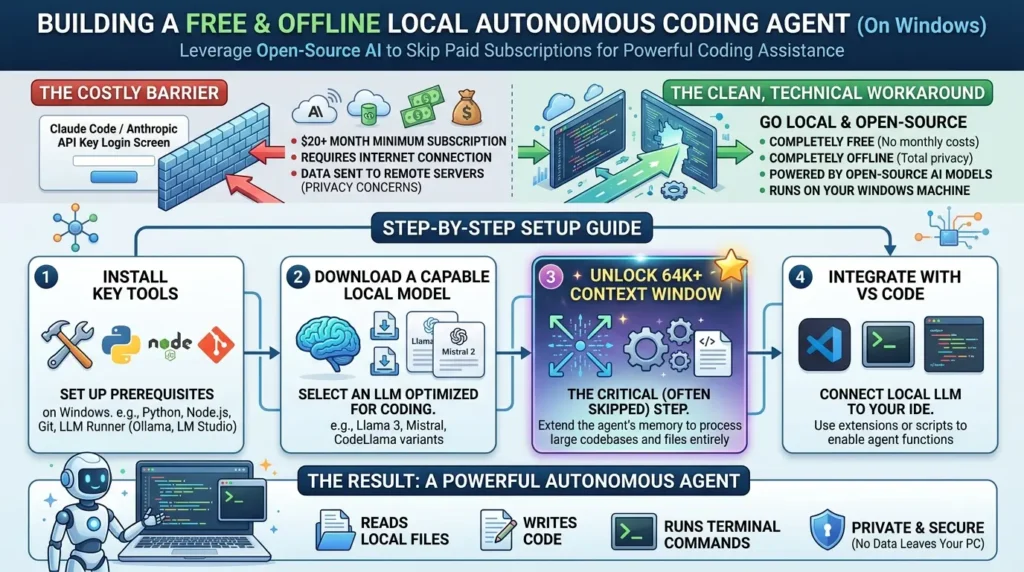
This guide walks you through the full setup: installing the right tools, downloading a capable local model, unlocking a 64k context window that most tutorials skip entirely, and getting it working inside VS Code. By the end, you will have a functioning autonomous coding agent that never touches a remote server.
- Claude Code can run entirely on your local Windows PC using Ollama as the AI backend, with no subscription required.
-
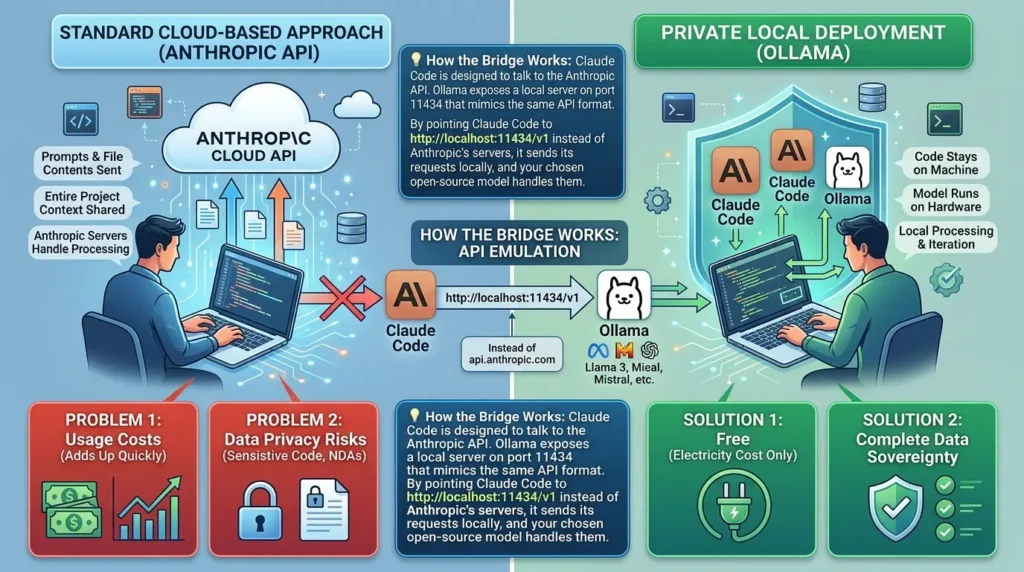
The trick is redirecting Claude Code’s API calls to
localhost:11434, where Ollama runs as a local server that mimics the Anthropic API format. - The default 4k context window on most local models is too small for real coding tasks. Build a custom Modelfile with a 64k context window instead.
- Qwen 2.5 Coder is currently one of the strongest open-source coding models available for this workflow.
- Your code never leaves your machine, making this ideal for proprietary projects, NDA work, or air-gapped environments.
- The same Claude Code CLI can switch between local and cloud models by changing a single environment variable.
What Is Claude Code and Why Run It Locally?
Claude Code is Anthropic’s command-line AI agent built for software development. Unlike a chatbot, it does not just answer questions. It reads your project files, proposes edits, writes new code, runs terminal commands, and iterates based on the results. Think of it as an AI developer sitting inside your terminal.
The standard setup sends everything, your prompts, your file contents, your entire project context, to Anthropic’s cloud API. That works fine for many developers. But it creates two real problems for others.
First, cost. Serious usage adds up quickly. Second, privacy. If you are working on proprietary software, client code under NDA, or anything sensitive, routing it through a third-party server is simply not acceptable.
Running Claude Code locally through Ollama solves both problems at once. Your code stays on your machine. The AI model runs on your hardware. The only cost is electricity.
http://localhost:11434/v1 instead of Anthropic’s servers, it sends its requests locally, and your chosen open-source model handles them. What You Need Before Starting
This setup does not require a supercomputer, but it does have minimums worth knowing before you begin.
| Component | Minimum | Recommended |
|---|---|---|
| RAM | 16 GB | 32 GB |
| GPU VRAM (Nvidia) | 4 GB (smaller models) | 16–24 GB (RTX 3090/4090) |
| Operating System | Windows 10 64-bit | Windows 11 |
| Disk Space | 10 GB free | 30 GB+ free |
| Internet | Required (one-time setup) | Broadband recommended |
No GPU at all? You can still run this on CPU-only using a smaller 7-billion parameter model. It will be slower, but it works. The experience improves significantly once you have a dedicated Nvidia GPU with enough VRAM to hold the model in memory.
✅ Setup Checklist
Track your progress by checking off these items as you complete them:
Note: Your progress is saved locally in your browser for this session.
Step 1: Install Node.js
Claude Code is distributed as an npm package, and npm is bundled with Node.js. Start here.
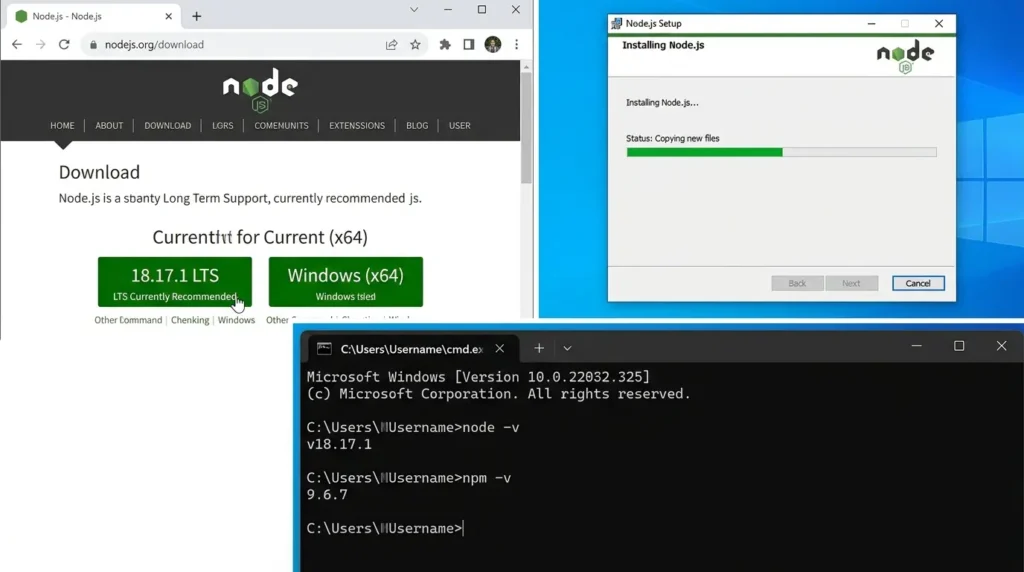
Open your browser and go to the official Node.js website. Download the LTS version for Windows. The LTS build is more stable and better suited to production tools like Claude Code than the current release.
Run the installer with all default settings, no special configuration needed. Once it finishes, open Command Prompt and verify both tools are present:
node -v
npm -v
Both commands should return version numbers. If they do, you are ready to move on.
Step 2: Install Claude Code
With npm working, installing Claude Code is a single command:
npm install -g @anthropic-ai/claude-codeThe -g flag installs it globally, so you can call claude from any folder on your system. After installation finishes, confirm it worked:
claude --version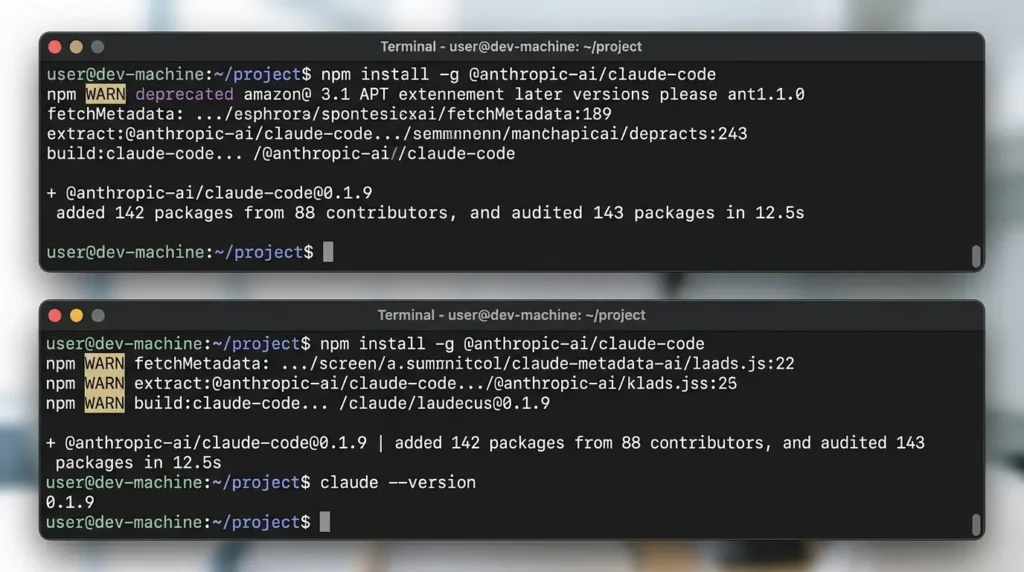
If a version number appears, Claude Code is installed. Do not log in or enter any API key yet, that step comes after Ollama is configured.
Step 3: Install Ollama
Ollama is the tool that runs AI models locally on your machine. It acts as a lightweight server: you give it a model name, it downloads and hosts that model, and it exposes a local API endpoint that other tools can connect to.
Visit the official Ollama website and download the Windows installer. Install it normally. Once installed, Ollama runs silently in the background.
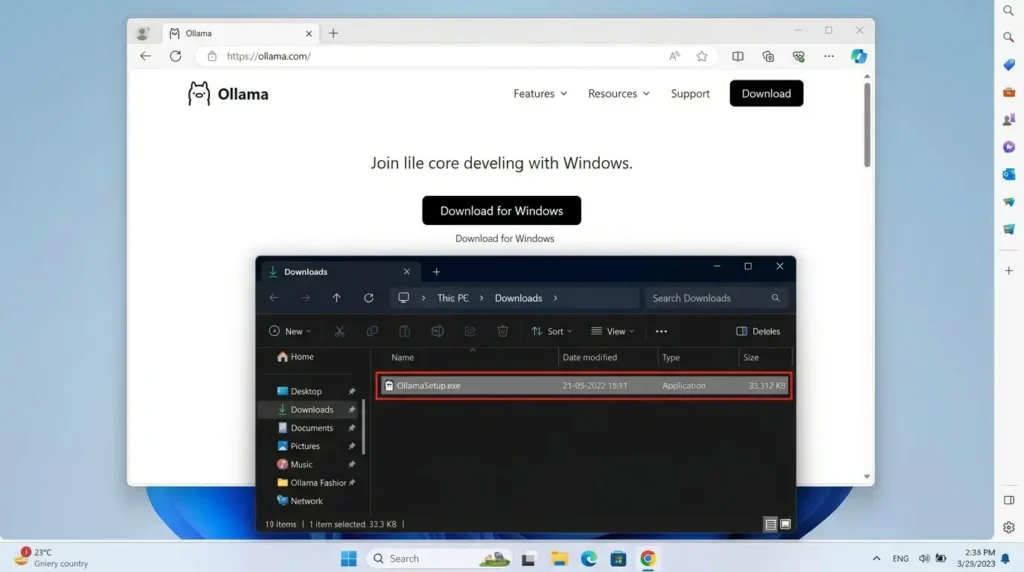
Verify the installation:
ollama --versionYou can also open your browser and navigate to http://localhost:11434. If the page says Ollama is running, the server is live and ready.
Step 4: Download Qwen 2.5 Coder
The model you choose matters more than most tutorials acknowledge. Not every open-source model behaves well as an agentic coding tool. Many smaller models struggle to follow structured tool-use instructions, instead of editing a file, they output raw JSON and stop. This is a model capability issue, not a bug in Claude Code.
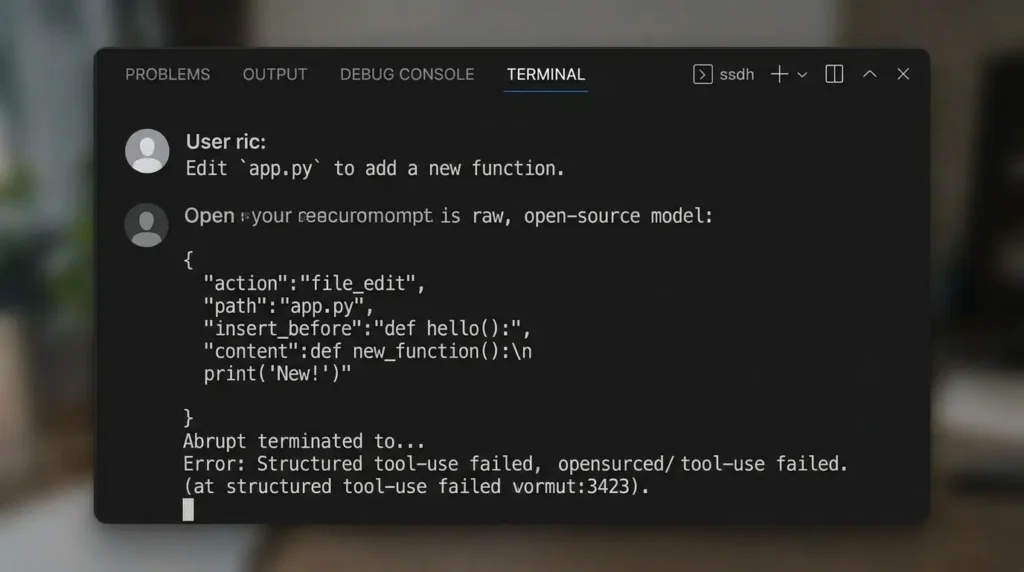
Qwen 2.5 Coder is currently the strongest open-source option for this workflow. It ranks at the top of the BigCode Models Leaderboard and has been widely validated by the local LLM community for agentic tasks. Pull it with:
ollama pull qwen2.5-coderThe download size depends on the variant. The 7b version is around 4–5 GB. The 14b is roughly 9 GB. For serious project-level work, the 32b version (about 20 GB) delivers the most reliable results, but requires 24 GB+ VRAM.
After downloading, confirm the model is available:
ollama listQuick smoke test, run the model and give it a simple prompt. If it responds with actual HTML, the model is working. Type /bye to exit.
Step 5: Expand the Context Window to 64k (Do Not Skip This)
This is the step most tutorials either skip entirely or mention vaguely without usable instructions. It is also one of the most important steps in the entire setup.
By default, many local models run with a context window of only 4,096 tokens. For a simple chat session, that is enough. For an agentic coding task, it is not. A medium-sized React project can exceed 10,000 tokens just from reading a few component files. If the model cannot hold the full context, it loses track of what it has already read, makes contradictory edits, and produces broken code.
The solution is a Modelfile, a simple configuration file that tells Ollama to run the model with an expanded context. First, create your project folder on the desktop and name it claude-project. Open Command Prompt inside that folder, then run:
echo FROM qwen2.5-coder > Modelfile
echo PARAMETER num_ctx 65536 >> Modelfile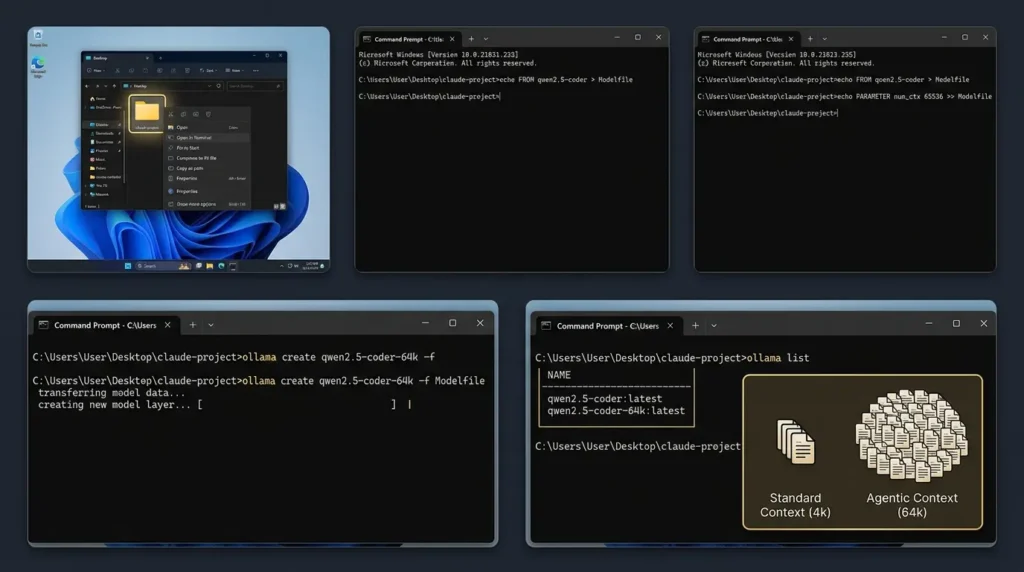
The first line sets the base model. The second adds the context parameter. Now build the custom model:
ollama create qwen2.5-coder-64k -f ModelfileRun ollama list again. You should now see qwen2.5-coder-64k listed alongside the original. This is your working model for Claude Code.
Step 6: Connect Claude Code to Ollama
Now comes the bridge. You need to tell Claude Code to stop looking for Anthropic’s cloud API and instead talk to your local Ollama server. This is done through two environment variables.
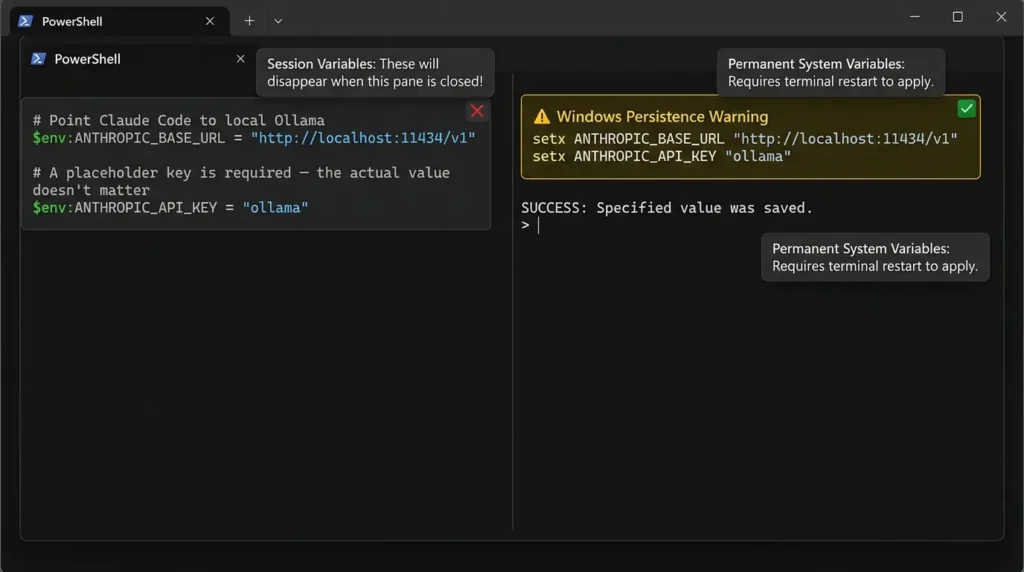
Open PowerShell and run:
# Point Claude Code to local Ollama
$env:ANTHROPIC_BASE_URL = "http://localhost:11434/v1"

# A placeholder key is required — the actual value doesn't matter
$env:ANTHROPIC_API_KEY = "ollama"$env: syntax sets variables for the current session only. Close the terminal and they are gone. To make them permanent, use setx instead:setx ANTHROPIC_BASE_URL "http://localhost:11434/v1"setx ANTHROPIC_API_KEY "ollama"Then restart all terminal windows. This is a critical Windows-specific step that most Linux-focused tutorials miss entirely.
Now launch Claude Code from inside your project folder:
claude --model qwen2.5-coder-64kClaude Code will open in the terminal. You should see the model name at the top of the interface, confirming it is using your local model, not the cloud. Test it with a simple prompt:
Create a simple index.html file with a “Hello World” heading and a blue background.
Claude Code will write the file and ask for your permission to save it. Confirm, then open the file in your browser. If the page renders correctly, your local coding agent is fully operational.
Step 7: Using Claude Code Inside VS Code
The command-line interface is powerful, but most developers prefer to work inside an editor. Claude Code integrates naturally into VS Code through the built-in terminal, and the experience is noticeably better once you can see generated files appear in the Explorer panel in real time.
Open VS Code and open your project folder. Go to Terminal → New Terminal. The terminal opens at your project root automatically. Set your environment variables if they are not already permanent, then launch:
$env:ANTHROPIC_BASE_URL = "http://localhost:11434/v1"
$env:ANTHROPIC_API_KEY = "ollama"
claude --model qwen2.5-coder-64k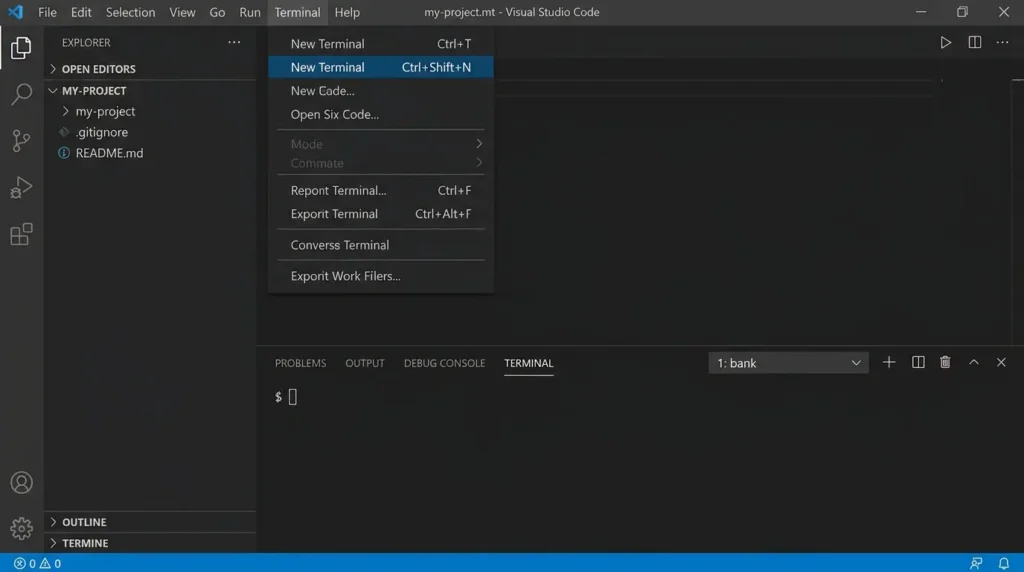
From here, instruct the agent to build something real and watch the files appear in the Explorer panel as they are created. Try this:
Build a to-do list app with HTML, CSS, and JavaScript. It should support adding tasks, marking them complete, and deleting them.
Open index.html in a browser to test it. That is a complete, locally-generated web app built by an AI model running entirely on your hardware.
Advanced: The Autonomous Mode Flag
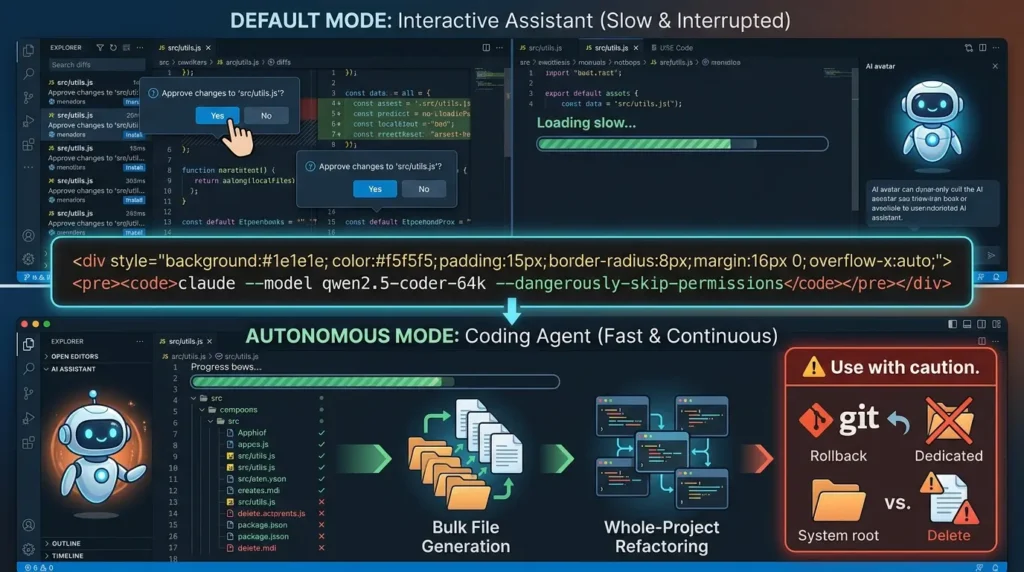
By default, Claude Code pauses before every action and asks for your approval. For large refactoring jobs or bulk file generation, that level of interruption becomes friction. There is a flag that removes it entirely:
claude --model qwen2.5-coder-64k --dangerously-skip-permissionsMost tutorials never mention this flag. It is, however, what turns the tool from an interactive assistant into a genuinely autonomous coding agent, capable of refactoring entire directories, generating documentation across every file, or building multi-page applications from a single prompt.
Local Claude Code vs. Other AI Coding Tools
| Feature | Local Claude + Ollama | GitHub Copilot | Cursor AI | Cloud Claude Code |
|---|---|---|---|---|
| Monthly Cost | $0 | $10–$19 | $20 | $20+ API |
| Code Privacy | ✅ 100% Local | ❌ Cloud | ❌ Cloud | ❌ Cloud |
| Agentic File Editing | ✅ Yes | Partial | ✅ Yes | ✅ Yes |
| Offline Use | ✅ Yes | ❌ No | ❌ No | ❌ No |
| Setup Difficulty | Medium | Easy | Easy | Easy |
| Model Quality | Good–Very Good | Good | Excellent | Excellent |
The main trade-off is honest: cloud model quality is still ahead of what consumer hardware can run locally. But for everyday tasks, refactoring, documentation, building standard apps, a well-configured local setup with Qwen 2.5 Coder is genuinely competitive.
Troubleshooting Common Issues on Windows
❌ Error: Connection Refused
Ollama is not running. Open Task Manager and look for the Ollama process. If it is missing, run ollama serve in a separate terminal. Verify the port is active:
netstat -ano | findstr 11434If nothing appears, Ollama is not listening. Restart it.
❌ Model Outputs Raw JSON Instead of Editing Files
This is a model limitation, not a Claude Code bug. Upgrade to 14B or 32B Qwen 2.5 Coder for better results.
❌ Environment Variables Reset After Restarting Terminal
Use setx instead of $env::
setx ANTHROPIC_BASE_URL "http://localhost:11434/v1"
setx ANTHROPIC_API_KEY "ollama"Performance Benchmarks: Expected Speeds on Different Hardware
When running AI models locally, generation speed (measured in tokens per second) is just as important as context size. If the model is too slow, the agentic workflow becomes frustrating. Hardware acceleration (GPU VRAM) is the biggest bottleneck for local LLMs.
Here is a realistic benchmark of what to expect when running Qwen 2.5 Coder via Ollama on different Windows hardware setups:
| Hardware Setup | Model (Qwen 2.5 Coder) | Est. VRAM / RAM Usage | Speed (Tokens/sec) | Developer Experience |
|---|---|---|---|---|
| RTX 4090 (24GB VRAM) | 32b (Quantized) | ~20 GB VRAM | 45 – 55 t/s | Excellent (Cloud-like speed) |
| RTX 3060 / 4060 (12GB VRAM) | 14b (Quantized) | ~9 GB VRAM | 25 – 30 t/s | Very Smooth (Highly Recommended) |
| RTX 3050 / 2060 (8GB VRAM) | 7b | ~5 GB VRAM | 40 – 50 t/s | Fast, but limited reasoning |
| CPU Only (Modern i7/Ryzen, 32GB RAM) | 7b | ~8 GB System RAM | 3 – 7 t/s | Slow (Usable for simple tasks only) |
The Hybrid Workflow: Switch Between Local and Cloud on Demand
Once you understand how the environment variables work, a useful pattern emerges. You do not have to choose permanently between local and cloud. Switch between them in seconds within the same terminal session.
Use the local model for routine tasks. When you hit a genuinely complex problem that needs stronger reasoning, swap to the cloud for that session:
# Remove local override
Remove-Item Env:ANTHROPIC_BASE_URL

# Set your real Anthropic API key
$env:ANTHROPIC_API_KEY = "sk-ant-your-real-key-here"

# Launch normally
claude
To return to local mode, re-set the ANTHROPIC_BASE_URL variable. No reinstallation. No reconfiguration. Just one environment variable swap.
Expert Insight: Why Local Agents Are the Next Shift in Developer Tooling
The developer community is in the middle of a transition that does not get enough attention in mainstream tooling articles.
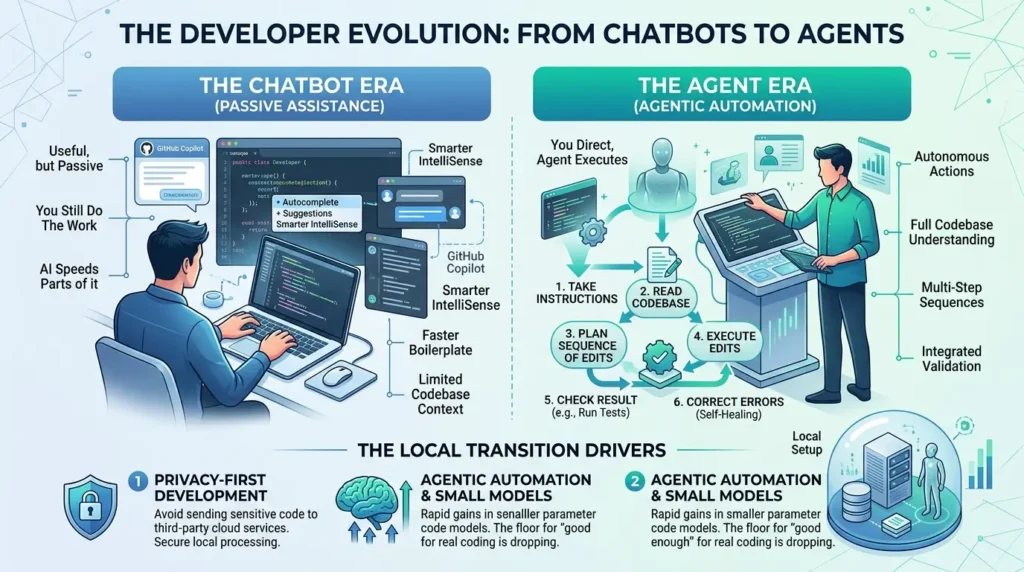
For years, AI in development meant autocomplete, a smarter IntelliSense, a faster way to write boilerplate. That is the chatbot era of AI coding tools. Useful, but passive. You still do the work; the AI makes parts of it faster.
What is emerging now is the agent era. Instead of an AI that completes lines, you have an AI that takes instructions, reads your codebase, plans a sequence of edits, executes them, checks the result, and corrects errors on its own. The developer’s role shifts from writing code to directing an entity that writes it.
This local setup sits at the intersection of two significant trends: privacy-first development and agentic automation. Companies handling sensitive data cannot route source code through third-party cloud services. Local agentic tools solve that problem without sacrificing capability. Research from academic benchmarks on code generation models consistently shows rapid capability gains in smaller parameter counts. The floor for “good enough for real coding work” keeps dropping.
Real-World Use Cases
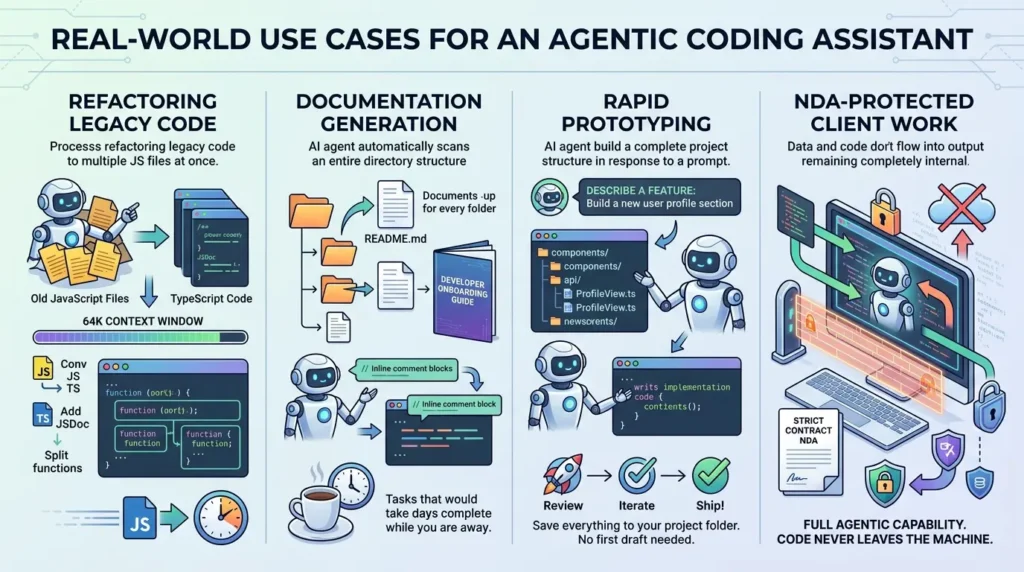
Refactoring legacy code
Point the agent at a directory of old JavaScript files and ask it to convert them to TypeScript, add JSDoc comments, and split oversized functions. With a 64k context window, it can process multiple files in a single pass.
Documentation generation
Run the agent across an entire codebase and ask it to write a README for every folder, add inline comments to undocumented functions, and produce a developer onboarding guide. Tasks that would take a developer days to complete while you are away from the keyboard.
Rapid prototyping
Describe a feature. The agent scaffolds the file structure, writes the implementation, and saves everything to your project folder. You review, iterate, and ship, without writing a first draft.
NDA-protected client work
When a client’s contract prohibits sending code to third-party services, this setup is the answer. Full agentic capability. Code never leaves the machine.
Quick Setup Summary
- Install Node.js (LTS) from nodejs.org
- Install Claude Code: npm install -g @anthropic-ai/claude-code
- Install Ollama from ollama.com
- Pull Qwen 2.5 Coder: ollama pull qwen2.5-coder
- Create a Modelfile with 64k context and build the custom model
- Set environment variables permanently with setx
- Launch: claude –model qwen2.5-coder-64k
Frequently Asked Questions
Can I use Claude Code locally without any GPU?
Yes. Ollama runs models entirely on CPU. Performance will be significantly slower — about 5–15 seconds per response on a modern CPU with a 7B model. It works for simple tasks, but GPU is better for heavy workflows.
Is this legal? Am I violating Anthropic’s terms of service?
Yes, it is legal. You are using Claude Code locally with your own model backend. You are not bypassing Anthropic systems — just redirecting requests to your local machine.
Why does my model keep losing context mid-task?
You are likely not using the 64k model. Make sure you’re running qwen2.5-coder-64k and verify it using ollama list.
Can I use a different model instead of Qwen 2.5 Coder?
Yes. Ollama supports models like Llama 3 and Mistral. The important part is tool-use and instruction following support.
Is my code really private in this setup?
Yes. When using localhost, everything runs locally and nothing is sent to external servers.
How do I update Qwen 2.5 Coder when a new version is released?
Run ollama pull qwen2.5-coder, then recreate your model:
ollama create qwen2.5-coder-64k -f Modelfile.




[…] Read the Full Article → […]