
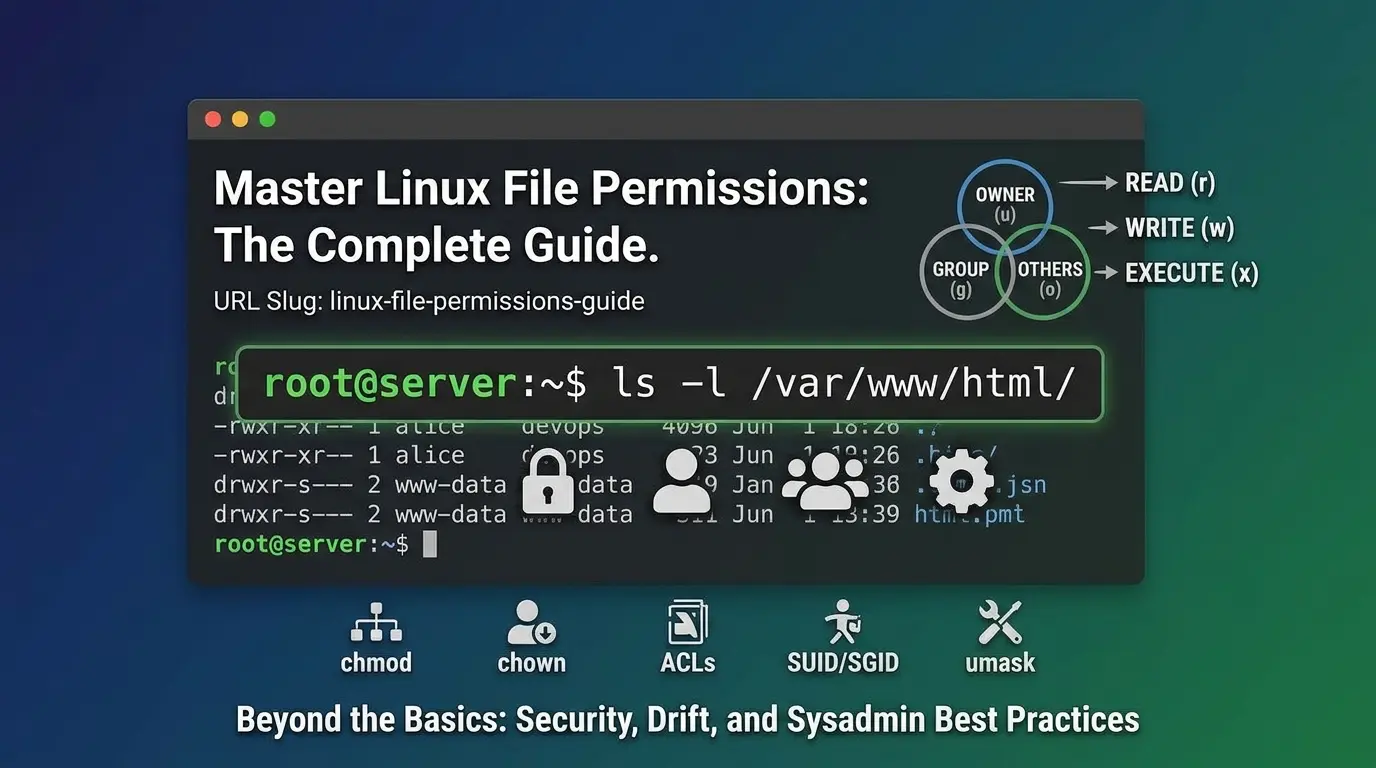

Most guides to Linux file permissions teach you the same thing: three letters, three classes, do the math, run chmod. That part is genuinely simple, and you’ll have it down in ten minutes.
Linux Permissions
What those guides skip is the part that actually causes outages and breaches. A 2022 systematic review of empirical access-control research in ACM Computing Surveys found that the recurring theme across real-world incidents wasn’t a weakness in the permission model,it was misconfiguration: permissions that were never wrong on the day they were set, but became wrong as systems changed around them. The rwx model has worked for fifty years. The way humans operate it at scale is where things fall apart.
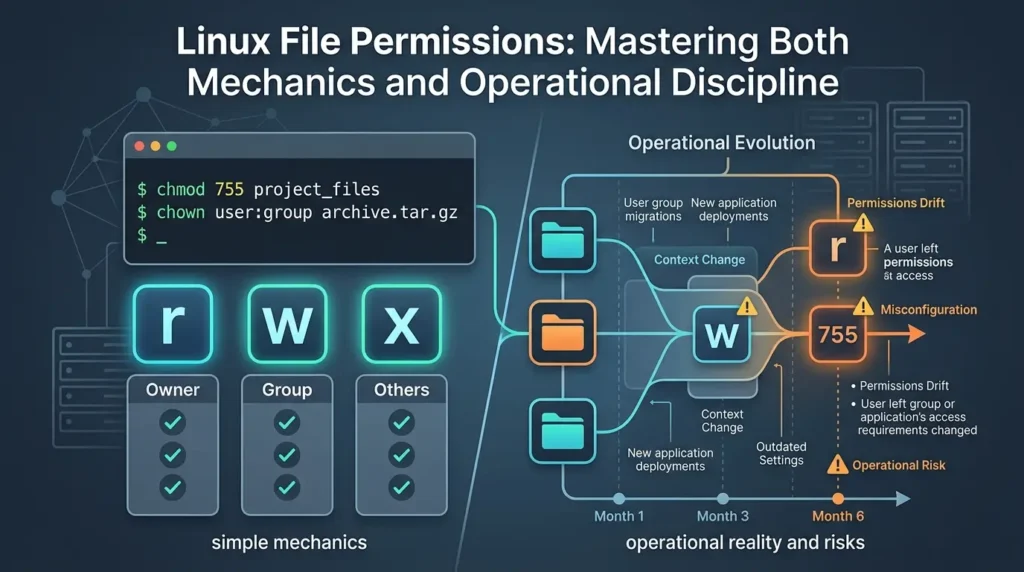
This guide covers both halves: the mechanics you need (permission strings, chmod, chown, umask, ACLs, special bits) and the operational discipline that the mechanics alone won’t give you.
- Permissions are checked once, against the first matching class (owner, then group, then others), a restrictive owner permission is never rescued by a looser group or “others” setting.
- On directories,
r,w, andxdon’t mean what they mean on files, this single mix-up causes a large share of “but the permissions look fine” tickets. chmod 777isn’t dangerous because it’s a big number, it’s dangerous because it removes the one control that limits who can tamper with a file at all.- umask is not subtraction. It’s a bitwise mask, and treating it as subtraction gives the wrong answer in some configurations.
- The biggest real-world risk isn’t picking the wrong mode today, it’s nobody re-checking the mode six months from now.
What Linux File Permissions Actually Are
Every file and directory on a Linux system stores a small block of access-control metadata directly in its inode, the filesystem’s internal record for that object. That metadata defines three things: who owns the file, which group it belongs to, and what each of three actor classes is allowed to do with it.
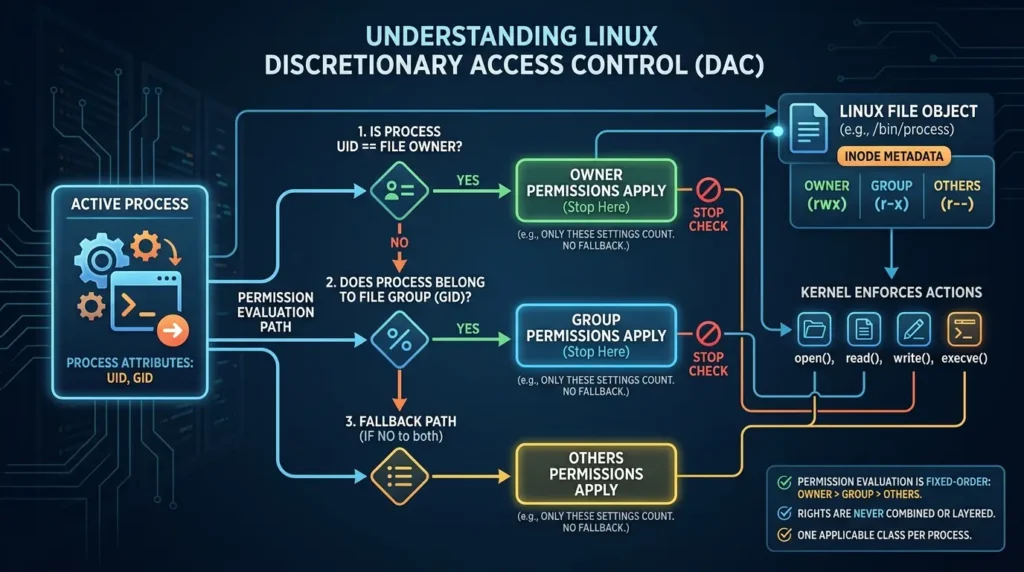
This is Discretionary Access Control (DAC): the owner of a resource gets to decide who else can touch it, and the kernel enforces that decision on every single open(), read(), write(), and execve() call. When a process tries to act on a file, the kernel compares the process’s user ID and group IDs against the file’s owner and group, in a fixed order:
- Is the process’s user ID the same as the file’s owner? If yes, the owner permissions apply, and the check stops there.
- If not, does the process belong to the file’s group? If yes, group permissions apply, and the check stops there.
- Otherwise, the “others” permissions apply.
That “stops there” detail trips people up constantly. If you own a file and you’ve explicitly removed your own read access, you cannot fall back on a more generous group or “others” setting, the kernel already matched you as the owner and stopped looking. The reverse confusion happens too: people assume group membership is a fallback path, when it’s really a separate, earlier-evaluated tier that can grant access the owner permissions alone wouldn’t.
Bottom line: Permissions aren’t combined or layered, exactly one of the three classes applies to any given process, decided by ownership, not by which setting happens to be more permissive.
Reading the Permission String
Run ls -l on any file and the first column is a ten-character string that encodes everything you need:
$ ls -l deploy.sh

-rwxr-xr-- 1 alice devops 2048 Jun 12 09:14 deploy.shThat first character is its own piece of information, the file-type flag. The common ones:
- – — a regular file
- d — a directory
- l — a symbolic link
- c / b — character or block device nodes (rare outside /dev)
- s / p — a socket or named pipe, used for inter-process communication
Files vs. Directories: Where Most Confusion Actually Lives
This is the section most tutorials rush past, and it’s the one that causes the most “why can’t I do X even though the permissions say I can” tickets. The same three letters mean structurally different things depending on what they’re attached to.
| Bit | On a File | On a Directory |
|---|---|---|
| read | Open and view the file’s contents | List the names of entries inside (ls) |
| write | Modify or truncate the file’s contents | Create, delete, or rename entries inside — regardless of the permissions on those entries themselves |
| xecute | Run the file as a program | Traverse into the directory (cd) and access metadata of entries inside |
Two consequences fall out of this that are worth internalizing:
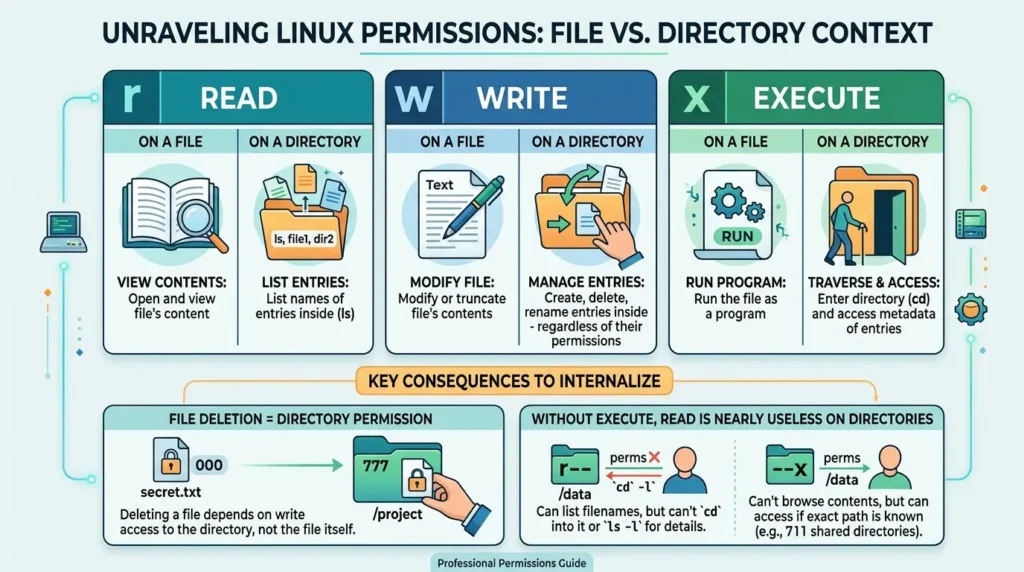
- Deleting a file is a directory permission, not a file permission: Whether you can remove secret.txt depends on whether you have write access to the directory it lives in, not on the permissions of secret.txt itself. You can have a file locked down to 000 and still delete it outright, if you own the parent directory and it’s writable.
- Without execute on a directory, read is nearly useless: With r– on a directory you can see the list of filenames (lsworks), but you can’t cd into it, and ls -l on the contents fails because the kernel can’t fetch their metadata without traversal rights. With –x alone, the reverse happens, you can’t list the directory’s contents, but if you already know an exact filename, you can still reach the file inside it. This is why some shared directories are deliberately set to 711: people can use what they know the path to, but can’t browse the contents.
Setting Permissions: Symbolic and Octal Notation
You can change a file’s permissions two ways. They’re equivalent, pick whichever matches how you think.
Symbolic notation uses letters and is best for incremental changes:
chmod u+x deploy.sh      # add execute for the owner only
chmod g-w config.json   # remove write from the group
chmod o=r public.html   # set "others" to read-only, explicitly
chmod a+r notes.txt     # add read for everyone (u, g, and o)
Octal notation sets the entire permission state at once, by summing point values: read = 4, write = 2, execute = 1.
Interactive Permission Calculator
Toggle the boxes below to build a permission set and watch the octal mode, symbolic string, and ready-to-run chmod command update.
Common Permission Modes: What They’re Actually For
| Mode | Symbolic | Typical Use | Notes |
|---|---|---|---|
| 600 | rw------- | SSH private keys, credential files, secrets | Only the owner can do anything |
| 640 | rw-r----- | Config files containing secrets, readable by one group | Group can read, never write |
| 644 | rw-r--r-- | Static web assets, public configs | Standard read-only-for-others file |
| 700 | rwx------ | Private directories, ~/.ssh | Owner-only, including traversal |
| 750 | rwxr-x--- | Group-shared directories without world access | Modern PHP-FPM / suexec hosting setups use this |
| 755 | rwxr-xr-x | Public directories, scripts, binaries | Owner edits, everyone else can use |
| 775 | rwxrwxr-x | Collaborative directories | Group can write — requires trustworthy group membership |
| 1777 | rwxrwxrwt | /tmp and shared drop folders | Sticky bit stops users deleting each other’s files |
| 777 | rwxrwxrwx | Essentially never, outside throwaway local sandboxes | Removes the only thing limiting who can modify the object |
Bottom line: if you’re reaching for 777 to make an error go away, you’re treating a symptom, wrong ownership, a missing group membership, or a misunderstood directory-vs-file rule, not the cause.
Special Permissions: SUID, SGID, and the Sticky Bit
Standard rwx bits cover most cases, but three special bits handle situations the basic model can’t.
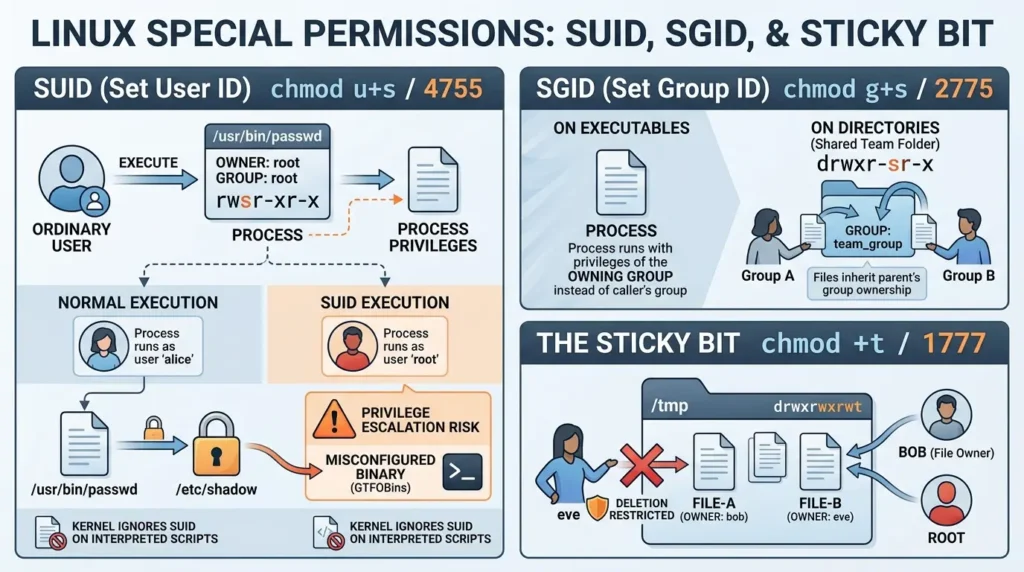
SUID (Set User ID), set with chmod u+s or a leading 4 in octal (chmod 4755). When a SUID-marked executable runs, it executes with the privileges of the file’s owner, not the user who launched it. This is how /usr/bin/passwd, owned by root, lets an ordinary user update an entry in the root-owned /etc/shadow file without being root themselves.
It’s also one of the most reliable privilege-escalation paths on a misconfigured system. GTFOBins, the widely used community-maintained catalog of Unix binaries with exploitable functions, documents dozens of common tools, text editors, find, even some shells, that grant a root shell almost immediately if they’re ever given the SUID bit by mistake. This is exactly why security teams routinely run an audit pass looking for SUID binaries that shouldn’t have the bit set (shown later in this guide).
One detail almost no beginner guide mentions: the Linux kernel deliberately ignores the SUID bit on interpreted scripts. Running a script requires the kernel to first open the file to read its shebang line, then separately spawn the interpreter named there, and that two-step process creates a small window where the target file could be swapped out (via a symlink race) between the permission check and execution. Modern kernels close that hole simply by refusing to honor SUID on anything that isn’t a compiled binary.
SGID (Set Group ID), chmod g+s or a leading 2 (chmod 2775). On an executable, it runs with the privileges of the owning group rather than the caller’s group. On a directory, it does something more commonly useful: every new file or subdirectory created inside automatically inherits the parent’s group ownership, instead of the creating user’s default group. This is the standard way to keep a shared team directory consistently group-owned without everyone remembering to chgrp manually.
The sticky bit, chmod +t or a leading 1 (chmod 1777). On a directory, it restricts deletion: only the file’s owner, the directory’s owner, or root can remove or rename a file inside, even if the directory itself is writable by everyone. /tmp is the textbook example, every user needs to create files there, but nobody should be able to delete someone else’s.
umask: The Part Almost Every Guide Gets Slightly Wrong
New files don’t appear with permissions of 0. The kernel starts from a base mode, 666 for files, 777 for directories, and your shell’s umask strips bits from that base every time something new is created.
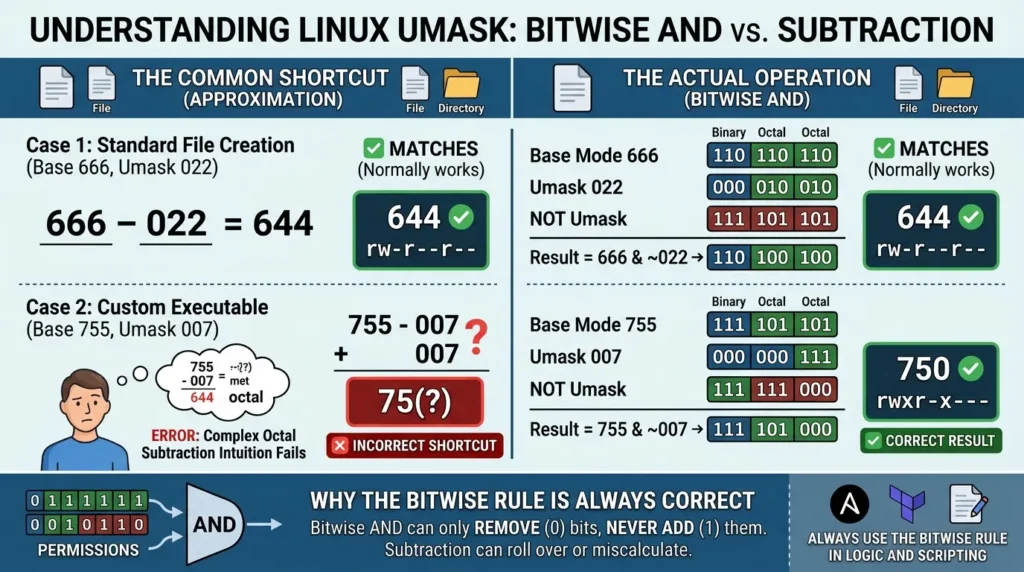
The common shorthand you’ll see everywhere is “umask subtracts from the default.” That’s a useful approximation, but it isn’t actually how it works, and the approximation breaks in specific cases (an executable getting created with a non-standard base mode, for instance). The real operation is a bitwise AND between the base mode and the complement of the umask:
Worked example, with the standard umask 022 and the directory base of 777:
base 777      = 111 111 111
umask 022     = 000 010 010
NOT umask     = 111 101 101
-----------------------------
result        = 111 101 101 = 755
For most everyday umask values, subtraction and the bitwise method land on the same answer, which is exactly why the shortcut stuck around. It stops matching once a base mode has a 0 in a position where the umask also has a 0, subtraction can swing negative or roll over in ways the bitwise AND simply can’t, because AND can only ever remove bits, never add them. If you’re scripting permission logic anywhere, Ansible, Terraform, a deployment hook, use the bitwise rule, not the shortcut.
| umask | New file mode | New directory mode |
|---|---|---|
| 022 | 644 | 755 |
| 027 | 640 | 750 |
| 077 | 600 | 700 |
| 002 | 664 | 775 |
Access Control Lists (ACLs): When Three Classes Aren’t Enough
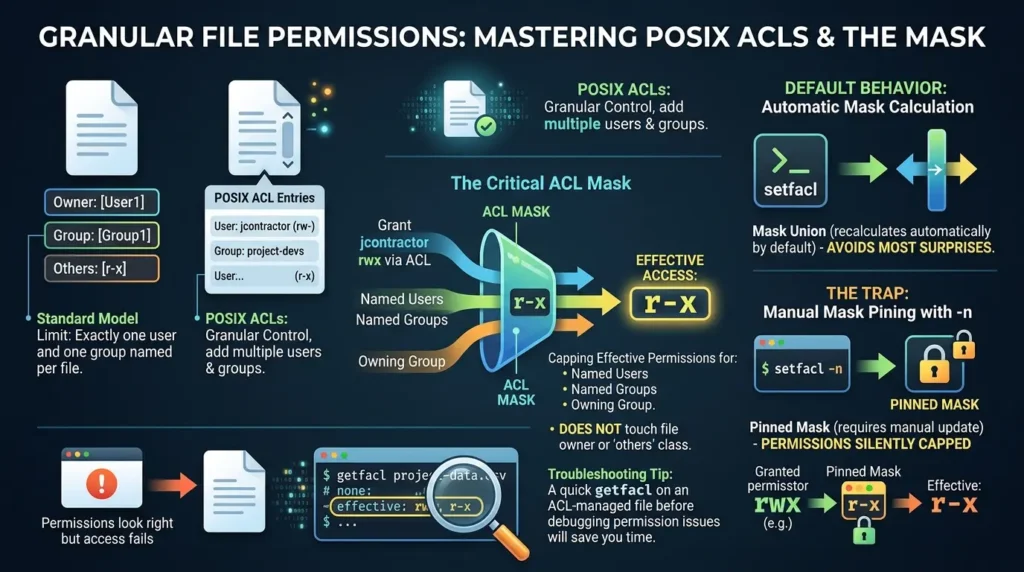
The owner/group/others model has a hard limit: exactly one user and one group can be named per file. The moment you need “this one contractor gets read access, without changing the file’s group,” POSIX ACLs are the answer.
# Grant a specific user read/write, without touching ownership
setfacl -m u:jcontractor:rw project-data.csv

# View the effective ACL
getfacl project-data.csv

# Remove that specific entry again
setfacl -x u:jcontractor project-data.csv
The detail that catches people out is the ACL mask: it caps the effective permissions for every named user, named group, and the owning group, but it does not touch the file owner or the “others” class. Grant a user rwx via ACL, and if the mask is r-x, their real-world access is capped at r-x no matter what the explicit entry says. setfacl recalculates the mask automatically by default (as the union of every granted permission), which avoids most surprises, but if you’ve manually pinned the mask with -n, an ACL entry can silently do less than it appears to.
This is a real trade-off, not a knock against ACLs: more granular control means more state to hold in your head, and a quick getfacl before debugging any “permissions look right but access fails” issue on an ACL-managed file will save you time.
Real-World Configurations
Web Server Roots
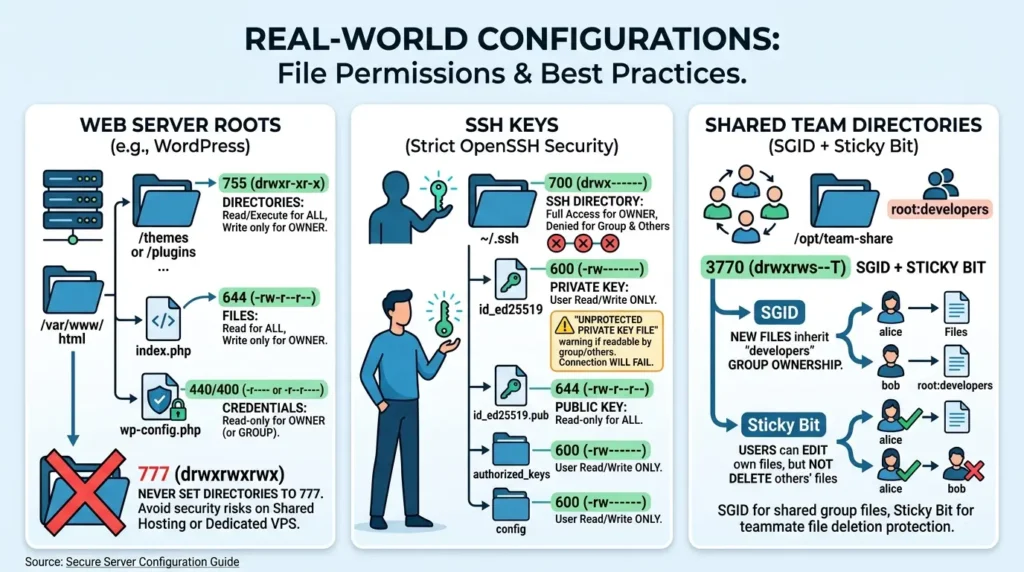
The official WordPress.org file-permissions documentation lays out the standard that generalizes to most PHP/web stacks: directories at 755, files at 644, and a tighter 440 or 400 for anything holding credentials, their guidance specifically calls out that no directory should ever be set to 777, including upload directories, because on shared hosting that opens every file to every other tenant’s process, and even on a dedicated VPS it removes the one barrier between “the web server can write here” and “anyone who gets a foothold can write anywhere.”
chown -R deploy:www-data /var/www/html

find /var/www/html -type d -exec chmod 755 {} +
find /var/www/html -type f -exec chmod 644 {} +

mkdir -p /var/www/html/uploads
chown deploy:www-data /var/www/html/uploads
chmod 2775 /var/www/html/uploads  # SGID keeps new uploads group-owned
SSH Keys
OpenSSH actively refuses to use a private key if it’s readable by your group or by anyone else, this isn’t a suggestion, the connection will simply fail with an “UNPROTECTED PRIVATE KEY FILE” warning until it’s fixed.
chmod 700 ~/.ssh

chmod 600 ~/.ssh/id_ed25519
chmod 644 ~/.ssh/id_ed25519.pub

chmod 600 ~/.ssh/authorized_keys
chmod 600 ~/.ssh/config
Shared Team Directories
mkdir -p /opt/team-share

chown root:developers /opt/team-share

chmod 3770 /opt/team-share  # SGID + Sticky Bit
SGID keeps every new file group-owned by developers automatically; the sticky bit means a teammate can edit your file but can’t delete it out from under you.
Containers Didn’t Remove Permission Problems, They Relocated Them
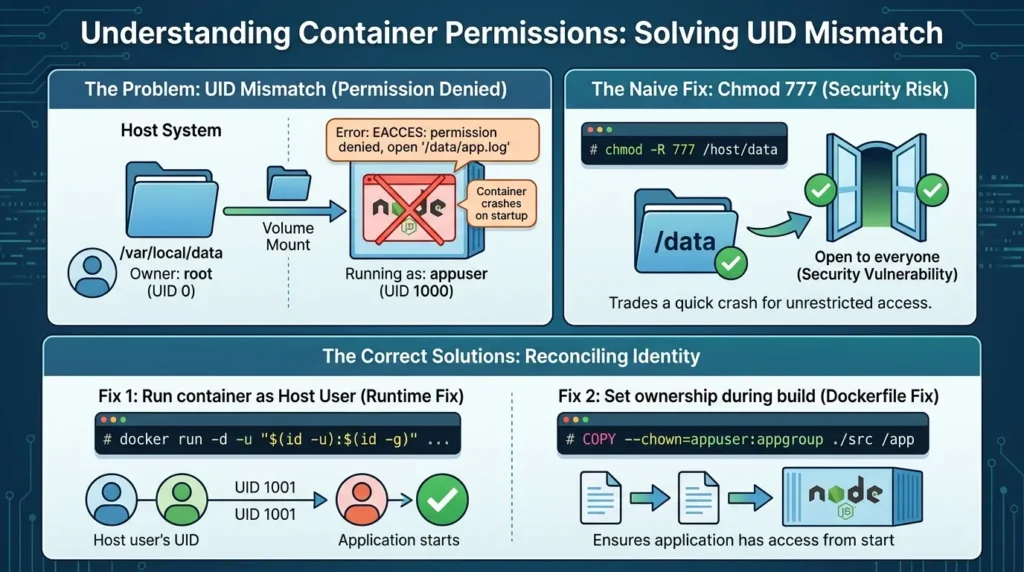
The single most common Linux-permissions support thread in container-focused communities isn’t about chmod syntax at all. It’s a UID mismatch: an application inside a container runs as a non-root user (Node.js images commonly default to UID 1000, Postgres to UID 999), and that container mounts a host directory that’s owned by root, or by a completely different UID. The app crashes with Permission denied on startup, and the instinctive fix, chmod -R 777 on the host directory, works, but trades a 30-second crash for an open door.
The actual fix is matching identities across the boundary instead of removing the boundary:
# Run the container as the same UID/GID that owns the host directory
docker run -d -u "$(id -u):$(id -g)" -v /var/local/data:/data my-app

# Or fix ownership during the image build itself
# Dockerfile:
COPY --chown=appuser:appgroup ./src /app
Bottom line: the permission model inside a container is the same Unix model covered in this whole guide, containers just add an extra identity boundary (the host UID vs. the container UID) that has to be reconciled, not bypassed.
Why Misconfiguration Beats the Model: What the Research Actually Shows
It’s tempting to assume that stronger tools, ACLs instead of plain rwx, SELinux instead of DAC, automatically mean a more secure system. The research doesn’t fully support that.
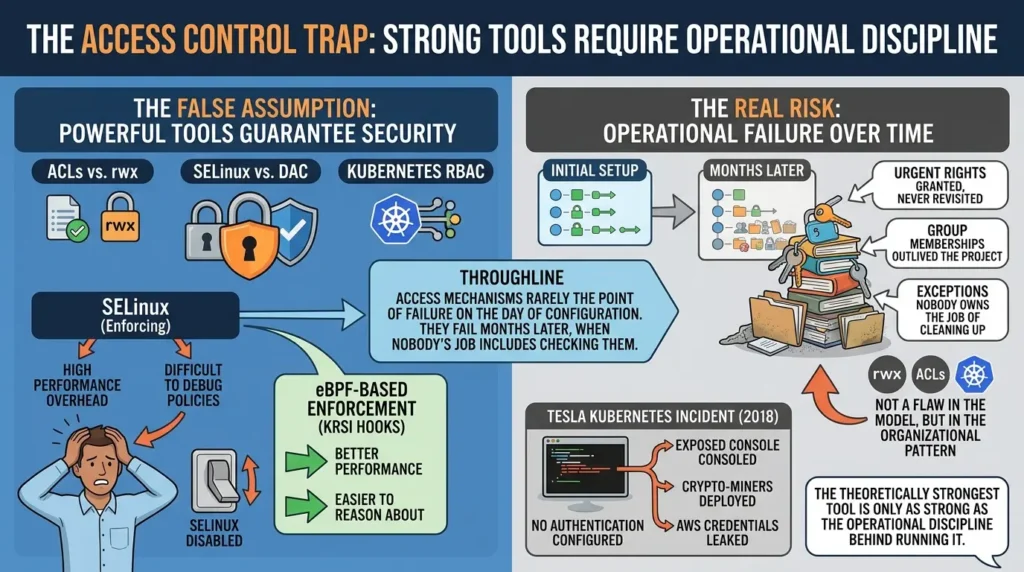
The 2022 ACM Computing Surveys review of empirical access-control analysis found that the dominant operational risk across the literature it surveyed wasn’t an inherent weakness in any particular access-control model, it was the accumulation of problematic permissions over time: rights granted to solve an urgent problem and never revisited, group memberships that outlived the project they were created for, and exceptions nobody owns the job of cleaning up. None of that is a flaw in rwx. It’s an organizational pattern that any access-control system, however granular, is equally exposed to.
That pattern shows up clearly when you look at why the strongest available Linux access control, SELinux, isn’t more widely run in enforcing mode.
A 2023 comparative study presented at the European Workshop on System Security found that SELinux policies introduce measurable performance overhead and, more importantly for day-to-day operations, are difficult enough to debug that administrators frequently disable enforcement entirely rather than fix a policy that’s blocking a legitimate action, the same paper found that newer eBPF-based enforcement (built on the kernel’s KRSI hooks) offered better performance and was easier to reason about than comparable SELinux policy.
The theoretically strongest tool, in other words, is only as strong as the operational discipline behind running it.
You don’t need a Linux-specific incident to see the same governance failure play out. In 2018, security researchers at RedLock discovered that Tesla’s Kubernetes administrative console was reachable from the open internet with no authentication configured at all.
Attackers found it first, used the exposed console to deploy cryptocurrency-mining software across Tesla’s cloud infrastructure, and along the way picked up AWS credentials that had been left accessible inside the environment, reported in detail by CNBC and CyberScoop at the time. Tesla patched it within hours of disclosure and reported no customer-data impact, but the root cause wasn’t a sophisticated exploit. It was an access-control setting that was permissive by default and nobody had gone back to tighten.
The throughline across all three of these: the access-control mechanism, POSIX permissions, SELinux, a Kubernetes dashboard’s auth setting, is rarely the point of failure on the day it’s configured. It’s the point of failure months later, after nobody’s job description includes checking it again.
Common Mistakes (And the Actual Fix)
| Mistake | Why It Happens | Real Fix |
|---|---|---|
chmod -R 777 to “fix” an error | Fastest way to make a Permission Denied message disappear | Find the actual broken link — usually ownership, or a missing execute bit on a parent directory |
chmod -R 755 across a whole tree | Convenient one-liner | Splits the execute bit onto plain text files. Use find ... -type d -exec chmod 755 {} + and a separate pass for files |
| SSH private key left at 644 | Copied from a backup or another machine | OpenSSH will refuse it outright — set keys to 600, the .ssh directory to 700 |
| Assuming file permissions control deletion | Reasonable but wrong | Deletion is governed by the parent directory’s write permission, not the file’s own mode |
| Forgetting the sticky bit on a shared writable directory | Easy to omit when copying a snippet | Without it, any group member can delete anyone else’s files in that directory |
| Treating SELinux denials as a permissions bug | ls -l shows the “right” mode | Check ls -Z and the audit log — SELinux can block access even when DAC permissions allow it |
Container Permission denied “fixed” with host-side 777 | Quickest unblock under deploy pressure | Match the container’s UID to the host directory’s owning UID instead |
Troubleshooting “Permission Denied”: A Systematic Path
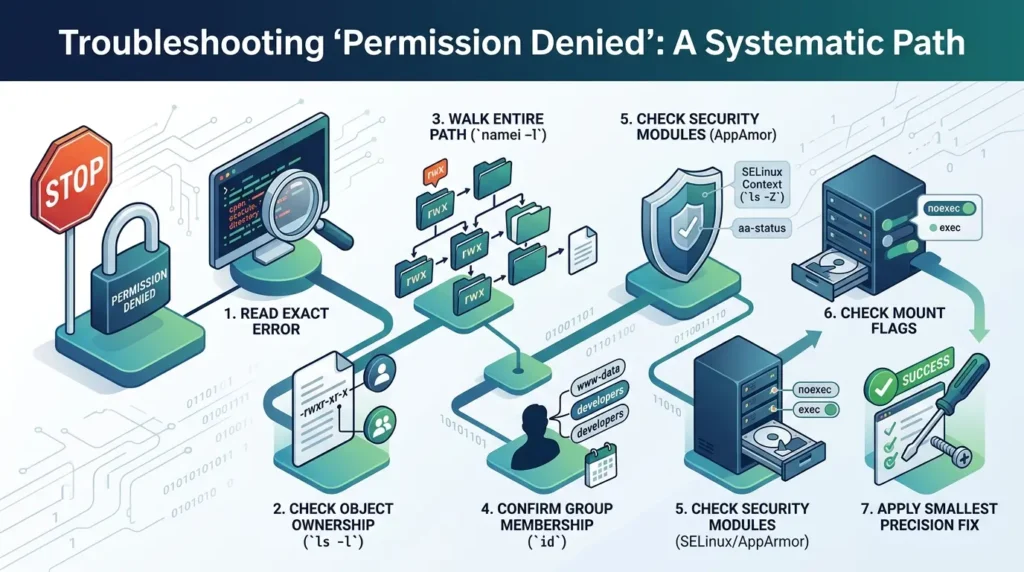
- Read the exact error. “Permission denied” on open, versus on execute, versus on a directory listing, point to different bits.
- Check the object itself: ls -l (or ls -ld for a directory) and confirm ownership matches who you expect.
- Walk the entire path, not just the final file. namei -l /path/to/file shows the permissions on every directory in the chain, a missing execute bit two levels up is one of the most common causes of a confusing failure on an otherwise-correctly-permissioned file.
- Confirm group membership with id username, group changes made with usermod don’t apply to an already-open session; the user needs to log back in or run newgrp.
- Rule out a security module. If standard permissions look correct and access is still denied, check ls -Z for an SELinux context, or aa-status for AppArmor, these can override DAC permissions entirely and won’t show up in a plain ls -l.
- Check the mount flags. A noexec mount will block script execution no matter what the file’s mode says.
- Apply the smallest fix that resolves the actual cause, not the broadest one that makes the symptom disappear.
Auditing: Finding the Permissions You Forgot About
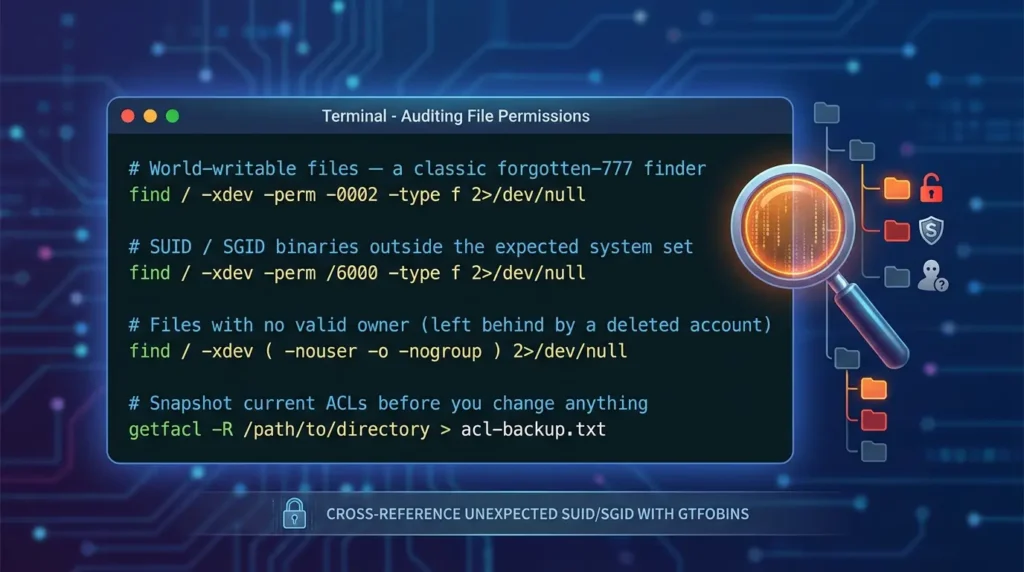
# World-writable files — a classic forgotten-777 finder
find / -xdev -perm -0002 -type f 2>/dev/null

# SUID / SGID binaries outside the expected system set
find / -xdev -perm /6000 -type f 2>/dev/null

# Files with no valid owner (left behind by a deleted account)
find / -xdev \( -nouser -o -nogroup \) 2>/dev/null

# Snapshot current ACLs before you change anything
getfacl -R /path/to/directory > acl-backup.txt
Cross-reference anything unexpected in the SUID/SGID list against GTFOBins, if a binary on that list shows up with the SUID bit set and it isn’t supposed to have it, treat it as an active finding, not a curiosity.
Conclusion
The mechanics in this guide, reading a permission string, picking the right octal mode, knowing when to reach for SGID or an ACL, will get you through nearly everything you’ll encounter day to day. They’re also the easy half.
The harder half, and the one backed by actual incident research rather than convention, is treating permissions as something that needs periodic re-checking, not a setting you get right once and forget. Start restrictive and loosen deliberately.
Prefer group ownership over 777 every time the urge to use it shows up. Audit on a schedule, not just when something breaks. And remember that even the strongest available access-control tooling only protects you for as long as someone keeps it tuned.
Frequently Asked Questions
What does chmod 777 actually do?
It grants read, write, and execute permissions to the owner, group, and everyone else on the system. On multi-user systems, this means any user or compromised process can modify or delete the file.
What’s the difference between chmod and chown?
chmod changes permissions (read/write/execute), while chown changes ownership (user and group).
Permission issues are sometimes actually ownership problems, which chmod alone cannot fix.
Why does my script say “permission denied” even after adding read permission?
Scripts require the execute bit, not just read permission. Use chmod +x script.sh.
If it still fails, check for noexec mount options or run it via interpreter:
bash script.sh.
What is umask, really?
It’s a bitwise mask applied to default permissions (666 for files, 777 for directories) when new files are created. It is not simple subtraction — it operates at the bit level.
What are ACLs and when do I need them?
ACLs allow fine-grained permissions beyond owner/group/others.
They are useful when a specific user needs access without changing group ownership.
Check them using getfacl.
Is chmod 777 ever acceptable?
Only in isolated, non-production environments. In real systems, it introduces serious security risks and should be avoided.
My permissions look correct but I still get “permission denied” — why?
Common causes include missing execute permission on a parent directory, SELinux/AppArmor restrictions, or a noexec mount option blocking execution.





[…] Read the Full Article → […]