
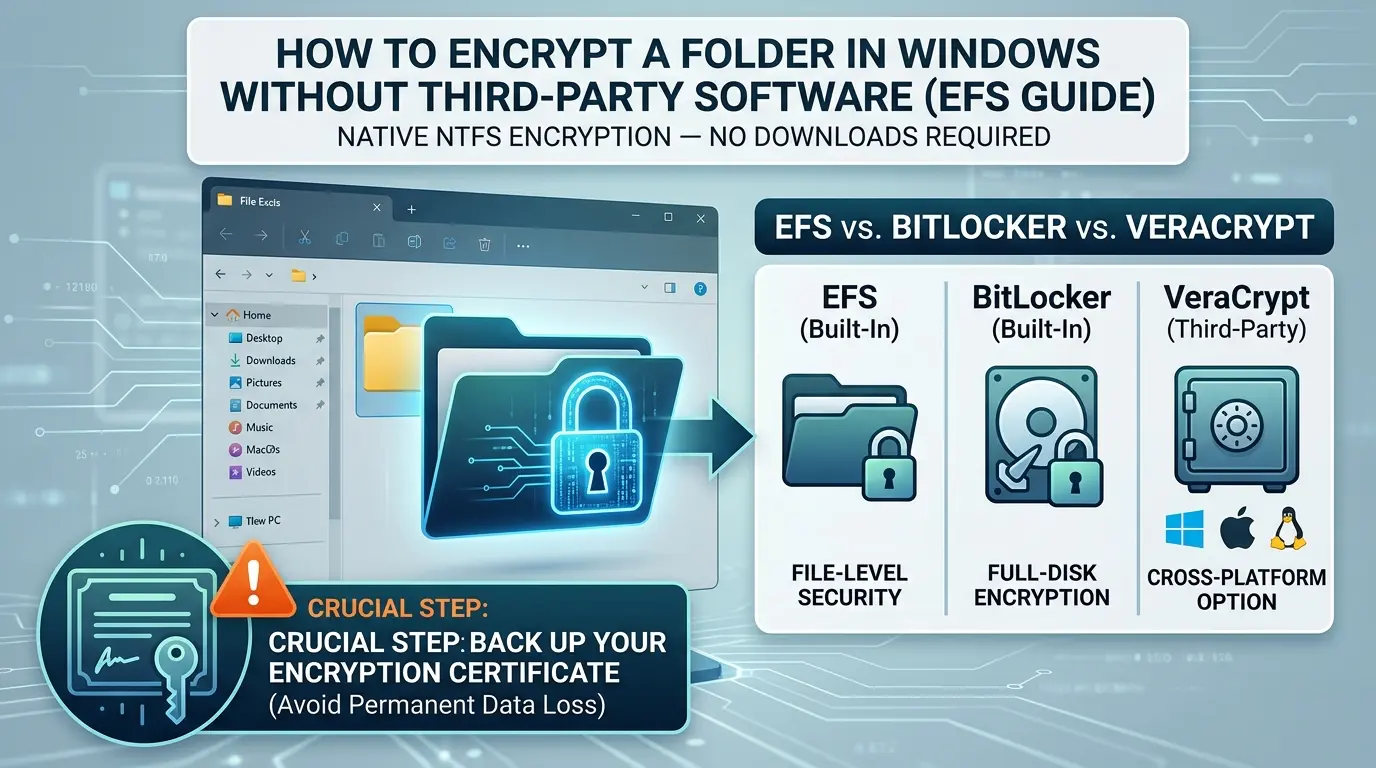

A laptop goes missing from the back of a taxi. Or a hard drive gets pulled from a machine that’s being sent out for repair. Either way, whoever ends up holding that drive next has physical access to every file on it, and a login password doesn’t stop them. Pull the drive, plug it into another machine, and a folder full of tax returns or client contracts is just sitting there, wide open.
Windows has had a fix for this built in since the year 2000, and most people have never touched it.
It’s called EFS, the Encrypting File System, and it’s already sitting inside every Pro, Enterprise, and Education copy of Windows, waiting for a single checkbox to be ticked. No download, no install, no subscription.
- The exact 8-step process to encrypt any folder using EFS, no software required
- What’s actually happening cryptographically when you tick that checkbox
- The single mistake that has permanently destroyed years of data for real Windows users (with their own accounts, in Microsoft’s own support forum)
- A clear breakdown of EFS vs. BitLocker vs. VeraCrypt, and which one actually fits your situation
- The exact commands to back up your key properly, before you ever need them
What Is EFS, and What Actually Happens When You Encrypt a Folder?
What is the Encrypting File System (EFS)?
EFS is a file-level encryption feature built into the NTFS file system in Windows. It scrambles the contents of individual files and folders using a combination of symmetric and public-key cryptography, tied to your Windows user account, so that anyone without your account’s private key sees only unreadable data, even with direct access to the drive.
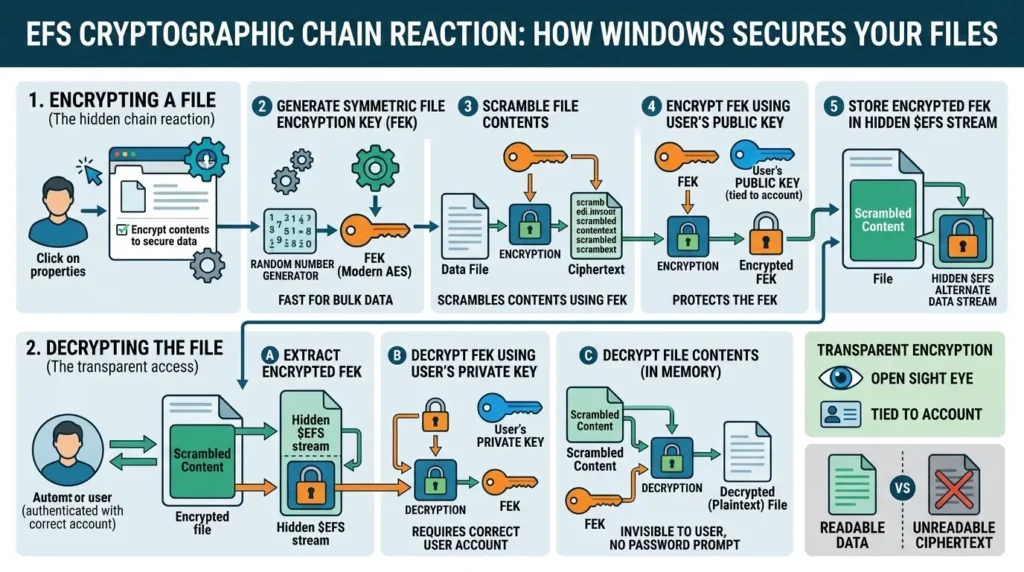
Here’s the part almost no walkthrough explains: checking “Encrypt contents to secure data” doesn’t just flip a switch.It kicks off a small cryptographic chain reaction, and understanding it is exactly what will save you later.
- Windows generates a random symmetric key for that specific file, called a File Encryption Key (FEK). Modern Windows uses AES for this step, having moved on from the older DESX algorithm used in early Windows versions.
- The file’s actual contents get scrambled using that FEK. Symmetric encryption is used here specifically because it’s roughly a thousand times faster than public-key encryption for bulk data, which is why encrypting even a folder with tens of thousands of files barely slows your machine down.
- That FEK itself then gets encrypted using your personal public key, and the result is stored inside the file’s hidden $EFS alternate data stream, riding along invisibly with the file.
- When you open the file later, Windows quietly pulls that encrypted FEK out, decrypts it using your private key, and uses it to decrypt the file contents in memory. You never see a password prompt. To you, the whole process is invisible.
That last point is the whole appeal of EFS: it’s transparent. You keep working exactly as before. Anyone else, a different user account on the same PC, or someone who lifted the physical drive, sees only ciphertext.
Section takeaway: EFS doesn’t encrypt “the folder” as a single object, it encrypts every file inside it individually, each with its own key, and ties the ability to unlock any of them back to your one Windows account.
How to Encrypt a Folder Using EFS : Step by Step
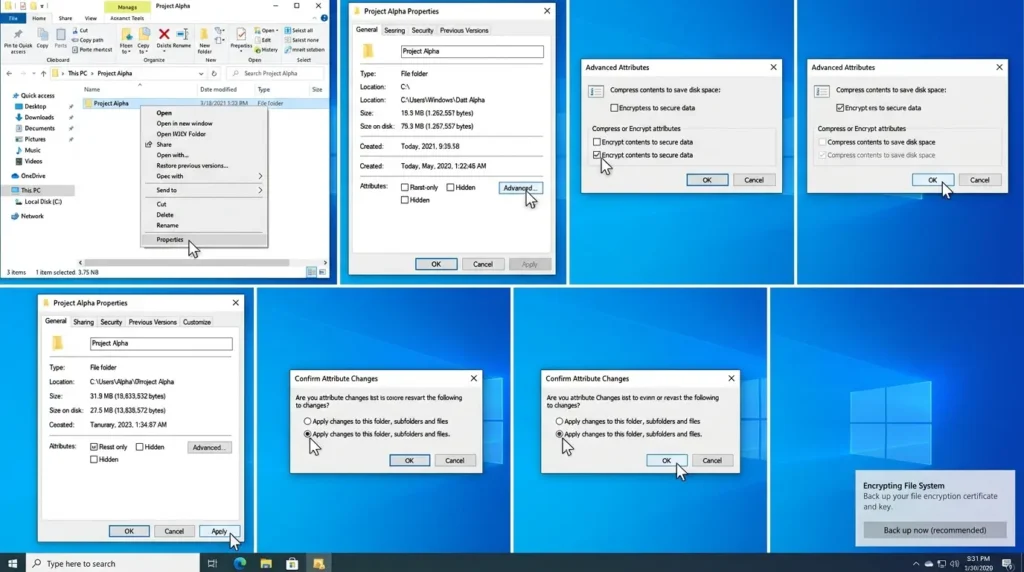
- Right-click the folder you want to protect, and choose Properties.
- On the General tab, click Advanced.
- In the Advanced Attributes window, check “Encrypt contents to secure data.”
- Click OK on the Advanced Attributes window — you’ll notice the checkbox for Compress is grayed out, since EFS and NTFS compression can’t be applied to the same folder at once.
- Back on the Properties window, click Apply, then OK.
- Windows will ask whether to apply the change to this folder only, or to this folder, subfolders, and files. Choose the second option — this ensures any file dropped into that folder later, and any temporary files an app creates while editing them, get encrypted automatically too.
- Click OK to confirm.
- Back up your encryption certificate when Windows prompts you. This step is not optional, it’s the single most important click in this entire process, and the next section explains exactly why.
In short: Properties → Advanced → check the box → apply to subfolders and files → back up the certificate the moment you’re asked. Skip step 8, and you’re one hardware failure away from losing the very files you just tried to protect.
Before vs. After: What This Actually Changes
| Scenario | Before EFS | After EFS |
|---|---|---|
| Drive removed and mounted elsewhere | Every file opens normally on any machine | Files appear as unreadable ciphertext without your key |
| Another user logs into the same PC | Blocked only by NTFS permissions (bypassable by an admin) | Blocked cryptographically — an admin resetting the password still can’t read the files |
| Your daily workflow | Open, edit, save as normal | Identical — decryption happens transparently in the background |
Notice what didn’t change: how you actually use the files day to day. That’s by design, EFS is meant to protect against a stolen or repurposed drive, not to get in your way while you work.
H2: The Mistake That Has Permanently Destroyed Real People’s Data
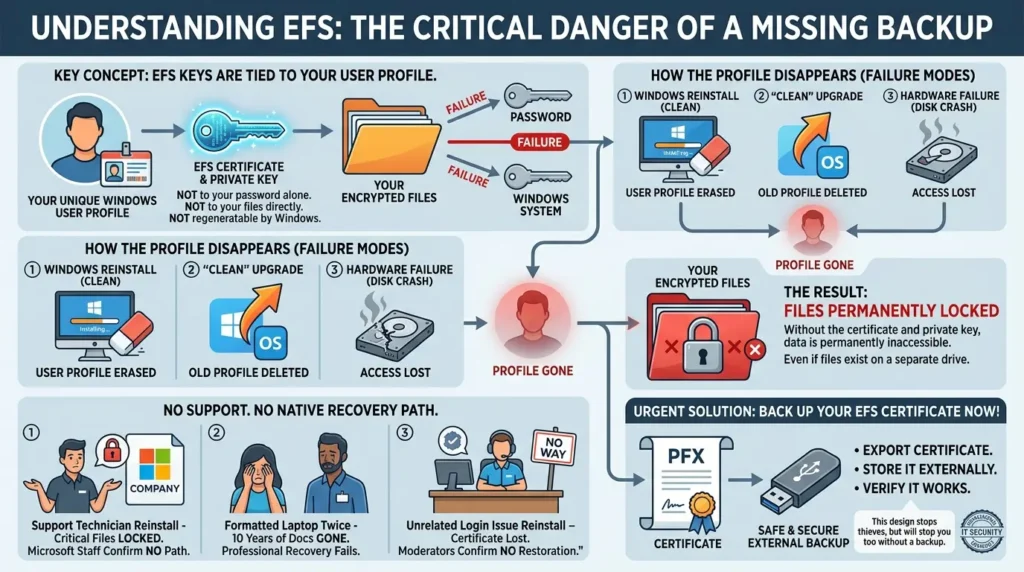
EFS keys are tied to your specific Windows user profile, not to your password, not to your files, and not to anything Windows can regenerate for you. If that profile disappears, through a reinstall, a “clean” upgrade, or a hardware failure, the certificate goes with it. And the cryptography keys for EFS are, in practice, protected only by your account password, making the encryption only as strong as that password, but losing the profile entirely is a different, more absolute failure mode.
This isn’t a theoretical warning. It’s a recurring thread in Microsoft’s own support forum, and reading a few of these is more convincing than any warning label:
- A support technician described reinstalling Windows on a company machine without backing up the EFS certificates first, leaving business-critical files on a separate drive permanently locked, with Microsoft’s own support staff confirming there was no native recovery path.
- One user described losing ten years of personal documents after formatting a laptop twice and moving files to a new Windows installation, and reported that even paid professional data-recovery services couldn’t get past EFS without the original key.
- Another explained that after a technician reinstalled Windows following an unrelated login issue, the encryption certificate was gone for good, and Microsoft’s own community moderators confirmed there was no way to restore it.
- Microsoft’s own support documentation is blunt about it: without the certificate or private key, EFS-protected files are permanently inaccessible, the system is deliberately designed so that not even Microsoft or IT support can bypass it.
Section takeaway: the checkbox that encrypts your folder in one click is also the checkbox that can lock you out forever, the only thing standing between those two outcomes is whether you exported the certificate before you needed it.
How to Actually Back Up Your EFS Certificate (Do This Immediately)
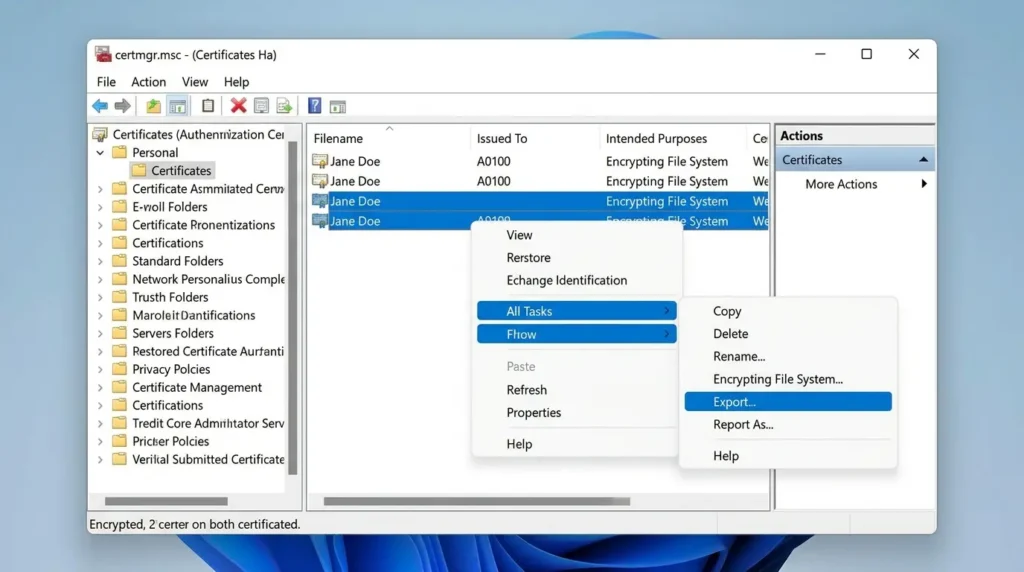
- The moment you encrypt your first file or folder, Windows should prompt you to back up your certificate — click that notification if you see it. If you missed it, you can trigger the same export manually.
- Open certmgr.msc, navigate to Personal → Certificates, and look for the certificate listing your account with “Encrypting File System” under Intended Purposes.
- Right-click it, choose All Tasks → Export, and select “Yes, export the private key.”
- Choose the PFX (.pfx) format, and set a strong password to protect the exported file — this password protects the key itself, separate from your Windows login.
- Alternatively, from an elevated Command Prompt, Microsoft’s own Cipher utility does this in one line:
cipher /xbacks up your current EFS key to a .pfx file in a location you choose. - Store that .pfx file somewhere that is not the same drive you just encrypted — a USB drive, an external SSD, or a password manager that supports file attachments. If the certificate lives on the same disk as the encrypted data, one drive failure takes out both the lock and the only key.
- If you ever need to restore access on a new installation, double-click the .pfx file, enter the password you set, and Windows re-associates it with your account — though one Microsoft Q&A user noted that Windows can generate a new certificate over time, meaning older files may need an older backup of the key that matches their specific encryption thumbprint — a good reason to keep every exported .pfx, not just the most recent one.
:: Run as Administrator

:: Back up your current EFS certificate
:: and private key to a .pfx file
cipher /x C:\Backup\my-efs-key.pfx


:: Check which certificate thumbprint was used
:: to encrypt a specific file
:: (Useful if you have multiple .pfx backups)
cipher /c "D:\Data\MyFolder\document.docx"


:: On a new Windows installation,
:: restore access by importing the .pfx
:: Double-click the file in File Explorer,
:: or use CertUtil:

certutil -importPFX C:\Backup\my-efs-key.pfx
In short: back up the certificate the day you enable encryption, not the day you need it. Store it off the encrypted drive. Keep every version if you re-encrypt over time. That’s the entire difference between “inconvenient reinstall” and “permanent data loss.”
The Detail Almost Every EFS Tutorial Skips: Your “Encrypted” Folder May Still Leak the Original
Here’s something that doesn’t show up in a single step of the process above, and it’s confirmed directly in Microsoft’s own documentation: encrypting a folder that already contains files doesn’t erase the unencrypted originals, it just deletes the reference to them.
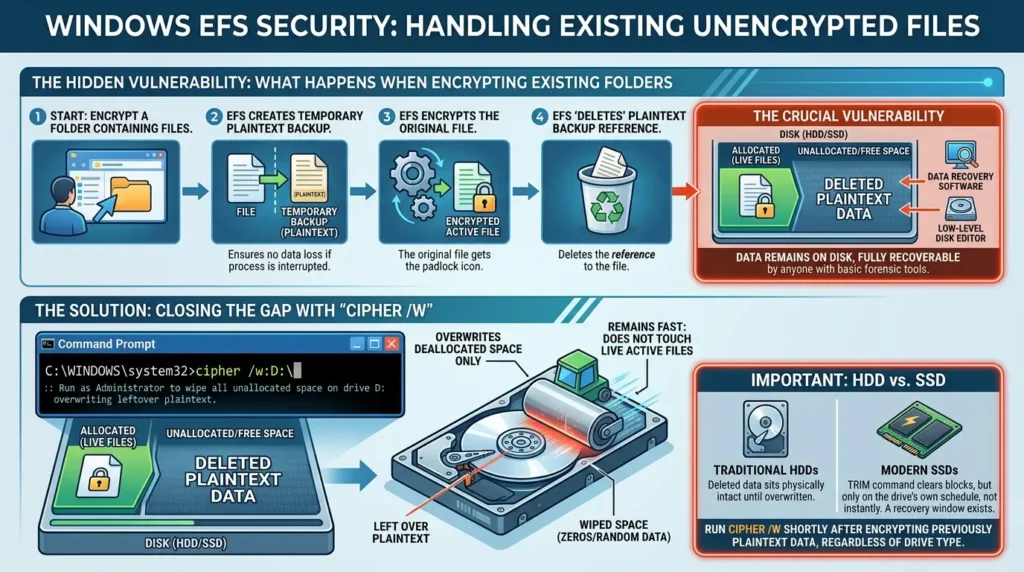
Microsoft’s own support documentation explains that when EFS encrypts a plaintext file, it first creates a temporary backup copy so nothing is lost if the process is interrupted, and once encryption finishes, that backup is deleted, but like any other deleted file on Windows, the data isn’t actually removed from the disk until the space is overwritten. Until that happens, it’s fully recoverable using ordinary data-recovery software or a low-level disk editor.
In other words: you can go through all eight steps above perfectly, see the padlock icon appear, and still have a fully readable, unencrypted copy of every file sitting in “deleted” space on the same drive, recoverable by anyone with basic forensic tools, encryption or not.
:: Run as Administrator, after you've finished
:: encrypting your folder(s)

:: Wipe all currently unallocated space
:: on drive D: — this overwrites any
:: leftover plaintext copies EFS left
:: behind during encryption

cipher /w:D:\

:: Note:
:: This can take anywhere from minutes
:: to several hours depending on drive size.
:: It only touches free space — never
:: your live, active files.cipher /w on the volume shortly after encrypting anything that was previously stored as plaintext. Section takeaway: the checkbox encrypts the file going forward, it does nothing about the plaintext version that already existed before you clicked it. cipher /w is the step that actually closes that gap, and it’s absent from almost every walkthrough, including the one that likely brought you here.
The OneDrive Blind Spot: When “Encrypted” Folders Aren’t Actually Encrypted
This is the one that catches even experienced users off guard, and it matters more than it used to, because Windows 11 now defaults to backing up your Desktop, Documents, and Pictures folders to OneDrive for a huge number of new PC setups.
Here’s the problem: EFS and OneDrive don’t play well together, and the failure is silent. Multiple independent reports in Microsoft’s own support channels confirm this isn’t a one-off glitch:
- One user documented that files downloaded through OneDrive sync into an EFS-encrypted folder stopped being encrypted after a period where the behavior had previously worked correctly, meaning a folder that was protected months earlier could quietly start storing new files in plain, readable form, with no warning shown.
- IT administrators in an enterprise environment reported that their organization-wide EFS encryption policy for the Desktop folder failed to apply once OneDrive for Business “Known Folder” synchronization was activated, even though the same policy worked fine on the Documents folder.
- On the cloud side specifically, one long-running EFS user reported the exact mechanism directly: files created in the encrypted folder were uploaded to OneDrive’s cloud storage in unencrypted form, meaning the encryption never traveled with the file once it left the local disk.
The practical takeaway: if your “encrypted” folder is one of the folders Windows is quietly syncing to OneDrive, which, on a default modern Windows 11 setup, includes Desktop and Documents, the protection you think you have locally may not exist at all in the cloud copy, and new files may stop being encrypted even locally without any notification.
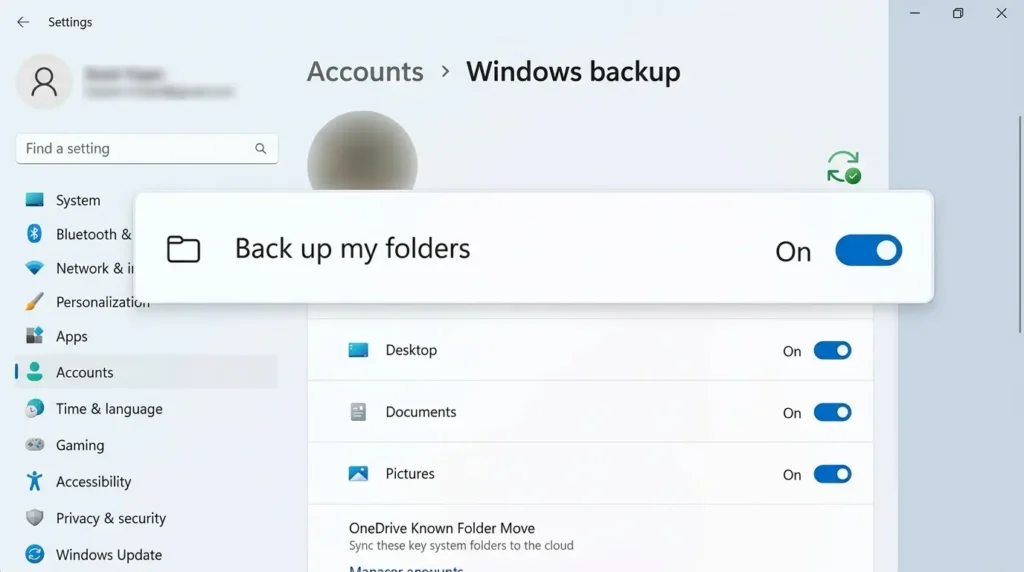
- Open Settings → Accounts → Windows backup (or the OneDrive icon in the system tray → Help & Settings → Backup) and check whether “Known Folder Move” is syncing your Desktop, Documents, or Pictures.
- If any folder you’ve EFS-encrypted overlaps with a synced folder, right-click a file inside it, choose Properties → Advanced, and confirm the “Encrypt contents” box is still checked.
- If you need both cloud backup and real encryption, move sensitive folders outside the OneDrive-synced locations entirely, or use BitLocker/VeraCrypt for that data instead — neither depends on NTFS-level encryption the way EFS does, though BitLocker’s protection also does not survive being uploaded to any cloud service in encrypted form.
Section takeaway: EFS protects a file sitting on your local NTFS drive. It was never designed to survive the trip to a cloud sync service, and in practice it can silently stop working on synced folders without telling you. If cloud backup and encryption both matter to you, they need to be handled as two separate problems, not one checkbox.
EFS vs. BitLocker vs. VeraCrypt: Which One Actually Fits Your Situation?
EFS isn’t the only built-in option, and it isn’t always the right one. Here’s an honest comparison, not just a feature list.
| Feature | EFS | BitLocker | VeraCrypt |
|---|---|---|---|
| Scope | Individual files/folders | Entire drive/volume | Whole disks or portable encrypted containers |
| Windows edition needed | Pro, Enterprise, Education | Pro, Enterprise, Education | Any edition, including Home |
| Protects against a logged-in but unauthorized user | Yes — other accounts on the same PC still can’t read the files | No — once the drive is unlocked at boot, anyone using the PC sees everything | Depends — mounted volumes are visible to anyone using the session |
| Cross-platform / portable | No — Windows/NTFS only | Limited — Windows-only by design, with no native support for reading BitLocker volumes on macOS or Linux | Yes — open-source and cross-platform across Windows, macOS, and Linux |
| Recovery if you lose the key | None, unless certificate was backed up or a recovery agent was set up in advance | A 48-digit recovery key, ideally saved to a Microsoft account in advance | None — not recommended for users who forget passwords, since there is no built-in recovery mechanism |
| Best for | A handful of sensitive folders on a shared PC | A stolen or lost laptop scenario, protecting everything at once | Portable encrypted drives, or Windows Home users needing full control |
Quick decision guide:
- A few sensitive folders on a PC multiple people use → EFS.
- An entire laptop that might get lost or stolen → BitLocker.
- Windows Home edition, or files that need to move between Windows, macOS, and Linux → VeraCrypt.
- Maximum protection with minimum trust in any single layer → many security-conscious users layer BitLocker for the whole drive with EFS on top for their most sensitive individual folders, since the two systems can be combined, encrypting a file twice for defense in depth.
Section takeaway: EFS wins for granular, per-folder protection on a shared machine. BitLocker wins for “the whole laptop got stolen.” VeraCrypt wins when you’re stuck on Windows Home or need the files to travel across operating systems.
Common Mistakes People Make With EFS
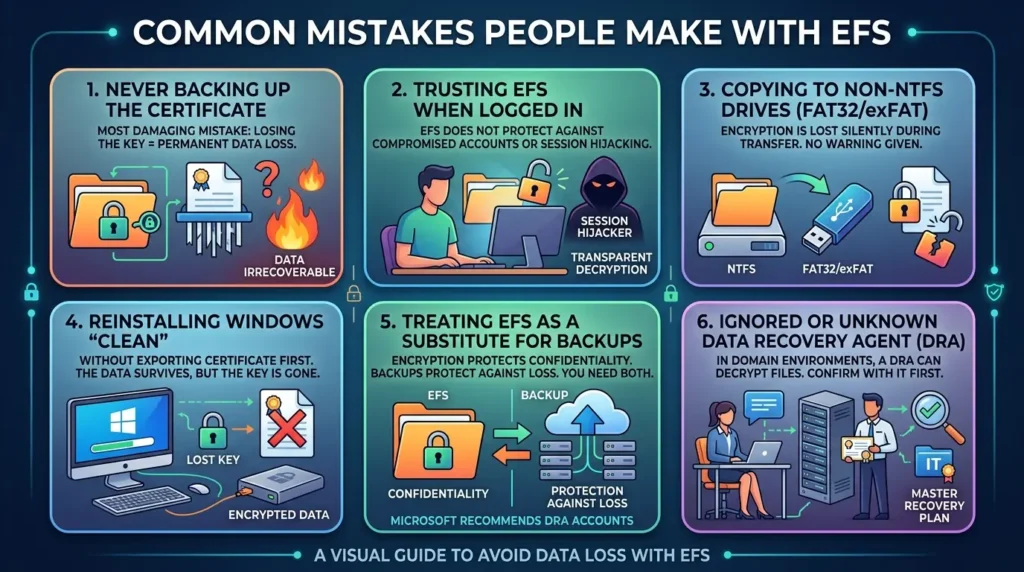
Encrypting the folder but never backing up the certificate
This is, by a wide margin, the single most common and most damaging mistake, every horror story in the section above traces back to this one skipped step.
Assuming EFS protects against someone who is already logged into your account
It doesn’t. EFS provides no protection from a compromised or already-logged-in account, since the files decrypt transparently for whoever is authenticated, it protects against physical drive theft, not session hijacking.
Copying encrypted files to a USB drive formatted as FAT32 or exFAT
EFS only works on NTFS-formatted drives, and files copied to a non-NTFS drive lose their encryption entirely in transit, silently, with no warning.
Reinstalling Windows “clean” without exporting the certificate first
Especially when encrypted data lives on a separate drive from the OS. The data survives; the only key that can read it does not.
Treating EFS as a substitute for a real backup strategy
Encryption and backup solve different problems, one protects confidentiality, the other protects against loss. You need both, and Microsoft’s own guidance recommends keeping at least two recovery agent accounts on separate machines specifically to prevent a single point of failure from causing irrecoverable data loss in business environments.
Not knowing your organization has a Data Recovery Agent (DRA), or not confirming whether it does
In a domain environment, a properly configured recovery agent certificate can decrypt files even without the original user’s key. If you’re on a company machine, this is worth confirming with IT before you ever rely on EFS alone.
Why This Actually Matters: The Cost of Getting Encryption Wrong
This isn’t an abstract concern. IBM’s Cost of a Data Breach Report 2025, based on research across 600 organizations, puts the global average cost of a data breach at $4.4 million, a figure that factors in detection, containment, notification, and lost business. A lost or stolen device with unencrypted sensitive files sitting on it is one of the more preventable paths into that number, and one Windows already gives you a free, built-in way to close.
Where This Leaves You
EFS is genuinely one of the most underused security features already sitting on your machine, free, fast, and transparent enough that you’ll forget it’s even running. It solves a real problem: a stolen laptop or a repurposed hard drive shouldn’t hand over your files to whoever ends up holding it.
But it comes with one hard rule that this guide exists to make impossible to miss: back up your certificate before you need it, not after. Every horror story pulled from Microsoft’s own support forum above starts the same way, someone encrypted their files, everything worked fine for months or years, and then a reinstall or a hardware failure hit, with no backup waiting on the other side.
Do the eight steps. Then do the backup. In that order, EFS is one of the best trades available in Windows: one checkbox, for real protection against physical access to your data.
Frequently Asked Questions
Can I encrypt a folder in Windows without installing any software?
Yes. Windows Pro, Enterprise, and Education editions include EFS (Encrypting File System) built directly into NTFS. Right-click any folder, go to Properties → Advanced, and check “Encrypt contents to secure data.” No download or installation is required.
Does EFS work on Windows 11 Home or Windows 10 Home?
No. EFS is only available on Pro, Enterprise, and Education editions of Windows. Home edition users needing similar protection should look at VeraCrypt, a free, open-source, cross-platform alternative.
What happens if I lose my EFS encryption certificate?
Without the certificate, its private key, or a configured Data Recovery Agent, the encrypted files are permanently inaccessible — Microsoft’s own support documentation confirms there is no built-in recovery path. This has happened to real users in Microsoft’s own support forum after a Windows reinstall wiped out the certificate along with the old profile.
Should I use EFS or BitLocker?
Use EFS to protect a handful of sensitive folders on a PC that multiple accounts share — it protects against other logged-in users, not just outsiders. Use BitLocker to protect an entire laptop against loss or theft, since it encrypts the whole drive and includes a 48-digit recovery key you can save in advance. Many people use both together for layered protection.
Will EFS-encrypted files still work if I copy them to a USB drive?
Only if the USB drive is formatted as NTFS. EFS depends on the NTFS file system, so copying encrypted files to a FAT32 or exFAT drive silently decrypts them in the process — the files arrive unprotected, with no warning shown.
How do I back up my EFS certificate?
Open certmgr.msc, find your certificate under Personal → Certificates with “Encrypting File System” listed under Intended Purposes, right-click it, choose All Tasks → Export, select “Yes, export the private key,” and save it as a password-protected .pfx file on a different drive than the one you encrypted. The command cipher /x in an elevated Command Prompt does the same thing in one step.
Does encrypting a folder with EFS slow down my computer?
Noticeably, no. EFS uses fast symmetric encryption for the actual file contents, and on any reasonably modern computer the performance difference is imperceptible during everyday use.
If I encrypt a folder that already has files in it, is the original unencrypted data really gone?
Not automatically. Microsoft’s own documentation confirms that EFS creates a temporary plaintext backup during encryption and deletes it afterward — but like any deleted file, it isn’t actually erased until the disk space is overwritten. It remains recoverable with ordinary data-recovery tools until you run cipher /w on that drive to overwrite the free space.
Does EFS still work if my folder syncs with OneDrive?
Not reliably. Multiple Microsoft support threads confirm that files synced through OneDrive can silently lose their EFS encryption, and once a file uploads to OneDrive’s servers, it is no longer EFS-encrypted at all. If a folder you’ve encrypted overlaps with Windows 11’s default Desktop/Documents backup to OneDrive, check whether that folder is actually protected — the failure doesn’t produce a warning.






[…] Read the Full Article → […]