
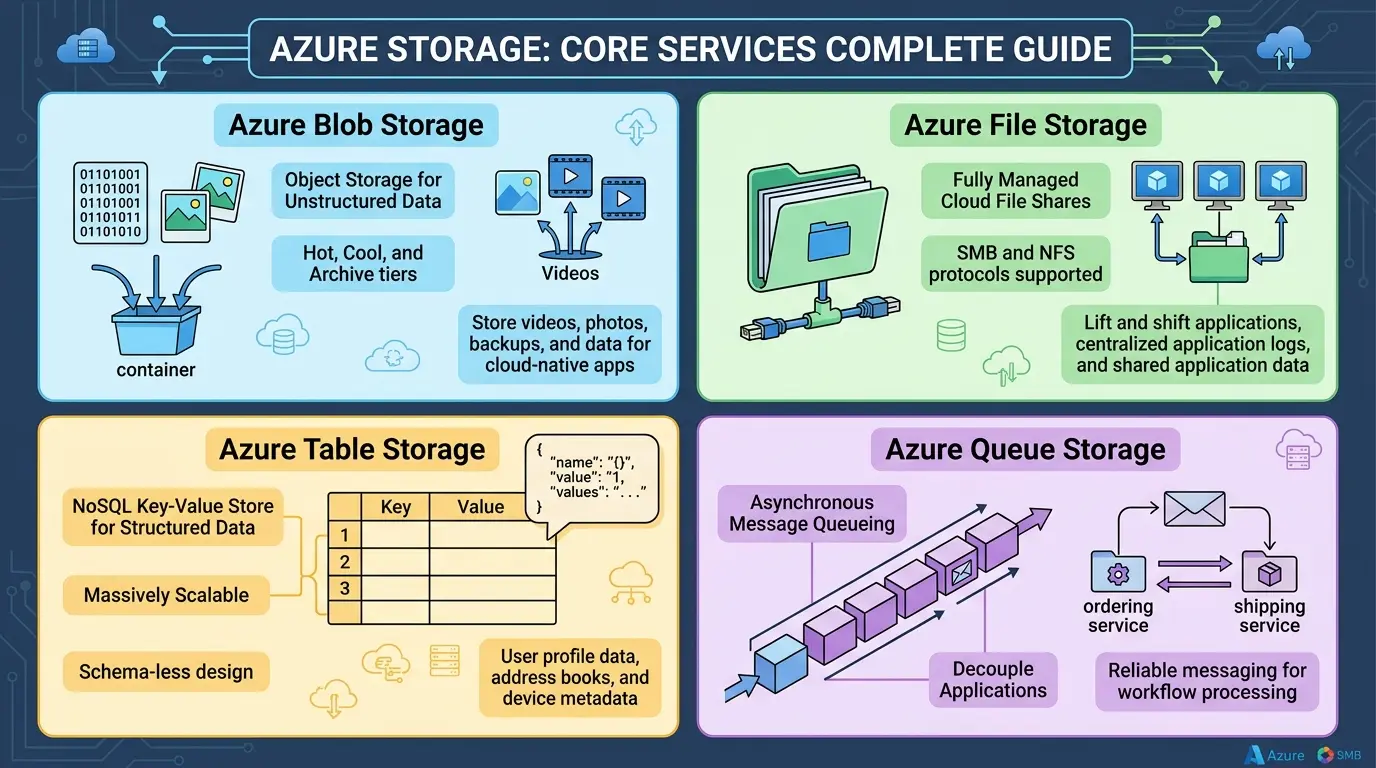

Today we are covering one of the most foundational topics in Microsoft Azure, cloud storage. Whether you are building a brand-new cloud-native application, migrating a legacy file server, or preparing for your AZ-900 or AZ-204 certification, understanding Azure’s storage platform is not optional. It is essential.
Here is the honest truth: most guides on this topic stop at definitions. They tell you what each service does, maybe show a screenshot of the Azure Portal, and move on. That is not what we are doing today. We are going to break down how each service actually works under the hood, why you would choose one over another, where things go wrong at scale, and what well-architected teams do differently.
By the end of this guide, you will understand the architecture behind Azure Storage, master all four core services, Blob, File, Table, and Queue, and walk away with a practical framework for making the right storage decision on any workload.
Let’s dive right in.
- What Azure Storage is and how its multi-tenant architecture works
- The purpose and design of Blob, File, Table, and Queue Storage
- Access tiers, lifecycle management, and how to avoid surprise billing
- Redundancy options, LRS, ZRS, GRS, GZRS, and what durability really means
- PartitionKey design patterns and the hot partition problem
- Queue visibility timeouts, poison messages, and when to use Service Bus instead
- Non-obvious failure modes that only appear at production scale
- A practical workload placement framework you can apply immediately
What Is Azure Storage? A Platform Built for Serious Scale
Definition: Azure Storage is Microsoft’s cloud-native storage platform, engineered to provide highly available, massively scalable, secure, and durable storage for virtually any type of data, from raw binary files and structured records to messages, file shares, and analytics workloads.
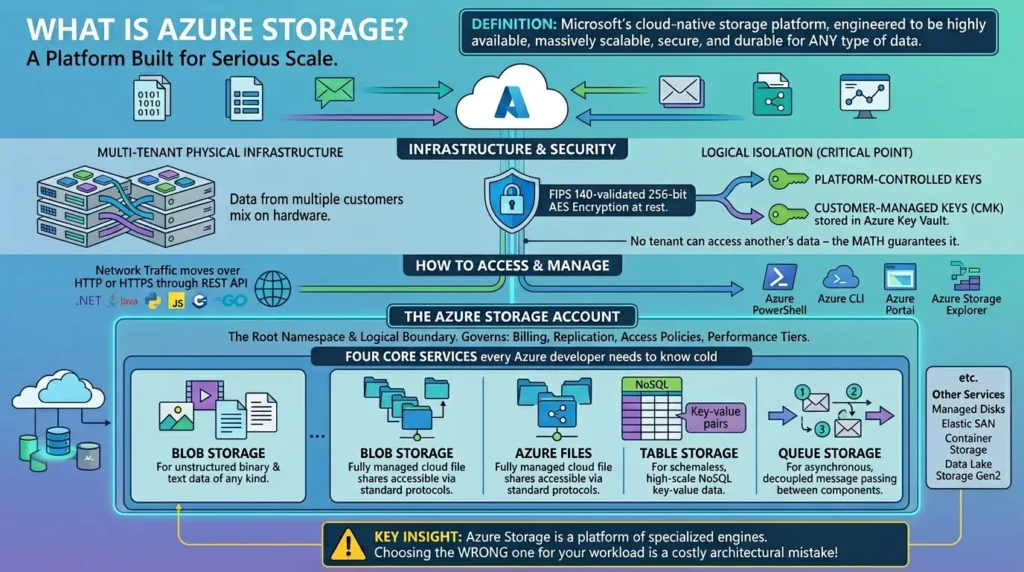
The platform runs on multi-tenant physical infrastructure. That means your data shares hardware with other customers’ workloads. But here is the critical point: logical isolation enforces cryptographic separation at rest using FIPS 140-validated 256-bit AES encryption, managed either through platform-controlled keys or customer-managed keys (CMK) stored in Azure Key Vault. No tenant can access another’s data, and the math guarantees it.
All network traffic moves over HTTP or HTTPS through a REST API or dedicated client libraries available in .NET, Java, Python, JavaScript, C++, and Go. You can also manage accounts through Azure PowerShell, Azure CLI, the Azure Portal, and Azure Storage Explorer.
Everything in Azure Storage lives inside a storage account, a logical boundary that groups services together and governs billing, replication, access policies, and performance tiers. Think of it as the root namespace for your cloud storage.
Four core services live within a storage account:
- Blob Storage for unstructured binary and text data of any kind
- Azure Files for fully managed cloud file shares accessible via standard protocols
- Table Storage for schemaless, high-scale NoSQL key-value data
- Queue Storage for asynchronous, decoupled message passing between components
Beyond these four, the platform also includes Azure Managed Disks for VM persistent storage, Elastic SAN for cloud-based SAN provisioning, Container Storage for Kubernetes persistent volumes, and Data Lake Storage Gen2 for petabyte-scale analytics. For today, we focus on the four core services every Azure developer needs to know cold.
Key insight: Azure Storage is not one service, it is a platform of specialized engines. Choosing the wrong one for your workload is one of the most common, and most costly, architectural mistakes in cloud development.
| Service | Data Type | Access Method | Best Use Case | Key Risk |
|---|---|---|---|---|
| Blob Storage | Unstructured — images, video, backups, logs | REST / HTTP / HTTPS | Web apps, analytics, AI pipelines, archives | Partition hotspots, lifecycle billing surprises |
| Azure Files | Files in a managed share | SMB / NFS / REST | Lift-and-shift, hybrid file servers, FSLogix | Identity misconfiguration, latency over WAN |
| Table Storage | Semi-structured / schemaless key-value | REST / OData / SDKs | Metadata stores, IoT telemetry, log records | Hot partitions from sequential keys |
| Queue Storage | Messages up to 64 KB | REST / SDKs | Background jobs, async decoupling, event buffers | No strict FIFO, no native transactions |
Azure Blob Storage: The Workhorse of Unstructured Data
What comes to mind when you think of “cloud storage”? Images, videos, backups, log files, application binaries. That is Blob Storage’s territory. Blob stands for Binary Large Object, and that name says everything. Any file, any format, any size. If you can store it as a file, you can store it in Blob Storage.
The Three Blob Types and When to Use Each
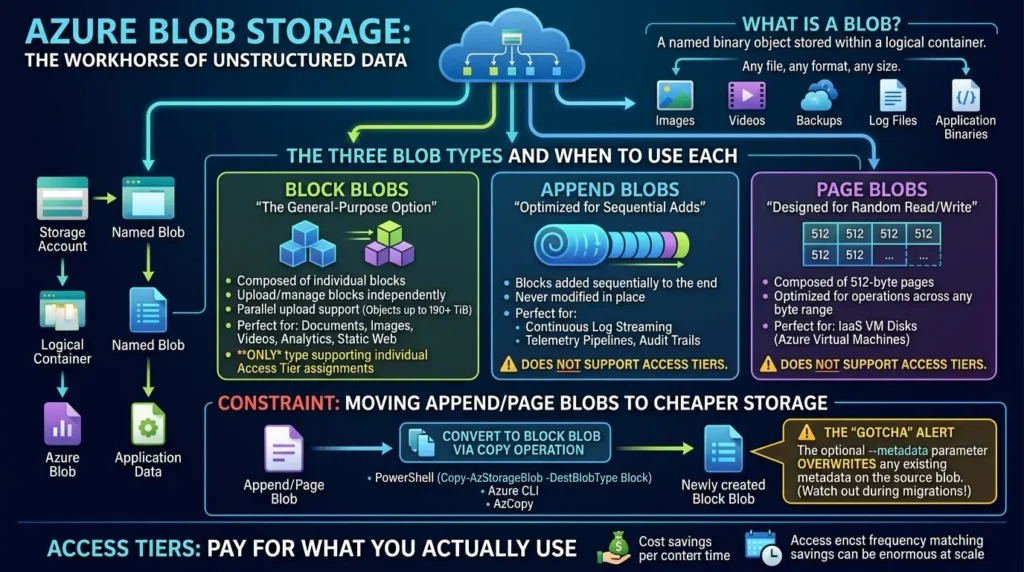
Definition: A blob is a named binary object stored within a logical container inside a storage account. Azure supports three distinct blob types, each optimized for a different access and write pattern.
Block Blobs are the general-purpose option. They are composed of individual blocks of data that can be uploaded and managed independently, perfect for documents, images, videos, analytics files, and static web content. Block Blobs are the only type that supports individual access tier assignments, and they can hold objects up to 190+ TiB with parallel upload support.
Append Blobs are optimized for exactly one thing: adding data sequentially to the end of an existing blob. Blocks are committed one after another, never modified in place. This makes them ideal for continuous log streaming, telemetry pipelines, and audit trails where you always append and never overwrite.
Page Blobs are composed of 512-byte pages and are designed for random read and write operations across any byte range in the blob. If you have used Azure Virtual Machines, you have already used Page Blobs, they are the underlying storage for IaaS VM disks.
One important constraint worth remembering: Append Blobs and Page Blobs do not support access tiers. If you need to move this data to cheaper storage, you must first convert the blob to a Block Blob using a copy operation via PowerShell (Copy-AzStorageBlob -DestBlobType Block), Azure CLI, or AzCopy.
When executing that conversion, note that using the optional –metadata parameter will overwrite any existing metadata on the source blob, a subtle gotcha that trips up many developers during migrations.
Access Tiers: Pay for What You Actually Use
Here is where Blob Storage gets genuinely smart. Not all data is accessed equally. Some files are touched every second. Others sit untouched for months. Azure’s access tier system lets you match storage cost to actual access frequency, and the savings can be enormous at scale.
There are five tiers: Hot, Cool, Cold, Archive, and Smart.
| Tier | Storage Cost | Retrieval Latency | Min. Retention | SLA (LRS/RA-GRS) | Best For |
|---|---|---|---|---|---|
| Hot | Highest | Milliseconds | None | 99.9% / 99.99% | Active web assets, live analytics |
| Cool | Medium | Milliseconds | 30 days | 99% / 99.9% | Short-term backups, DR data |
| Cold | Low | Milliseconds | 90 days | 99% / 99.9% | Rarely touched, fast-restore data |
| Archive | Lowest | Up to 15 hours | 180 days | 99% / 99.9% | Compliance archives, legal hold |
| Smart | Variable | Milliseconds | None | Variable | Unpredictable access patterns |
A few points that most tutorials miss:
Hot, Cool, and Cold are all online tiers, data is instantly readable. The minimum retention is a billing rule, not a technical restriction. Archive is different. Archive is offline. Before you can read archived data, it must first be rehydrated to Hot or Cool, which can take up to 15 hours at standard priority. Plan your SLA accordingly.
There is also a minimum billable object size rule worth knowing. Any blob smaller than 128 KiB stored in Cool, Cold, or Archive is billed as a full 128 KiB. This policy was introduced to limit metadata overhead from fragmented data. The Hot tier is exempt. If you are ingesting millions of small objects, consolidate them before transitioning to cooler tiers.
One more note: lifecycle management policies can automate tier transitions, but they cannot rehydrate archived blobs back to online tiers. That must be triggered manually using Set Blob Tier or a Copy Blob operation.
The Early Deletion Penalty: Understanding the Formula
Moving a blob to a cooler tier before its minimum retention window expires triggers an early deletion fee. This is where teams most often get surprised by their monthly bill.
The formula is:
Delapsed = actual days the blob remained in the tier
S = blob size in gigabytes
CGB = monthly storage cost per GB for that tier
Step-by-step example:
- You store a 10 GB blob in Archive tier (180-day minimum) at $0.002/GB/month.
- After 60 days, you decide to rehydrate and move it to Hot.
- Remaining days = 180 − 60 = 120.
- Penalty = (120 ÷ 30) × 10 × 0.002 = 4 × 10 × 0.002 = $0.08.
Small per blob. Enormous at millions of blobs. Use the calculator above to model the impact before running automated tier transitions.
Tip: The enableAutoTierToHotFromCool parameter can be enabled to automatically promote cool blobs back to Hot upon read access, useful for workloads with unpredictable access spikes.
⚠️ Anti-Pattern: Do Not Use as a Database: Never use Blob Storage as a database for high-frequency, random-access transactional updates. Because Blobs are immutable (or expensive to rewrite), performing frequent small writes will destroy your IOPS budget and rack up massive transaction costs. If you need transactional integrity, use Azure SQL or Cosmos DB.
Section Summary: Blob Storage supports any file type with tiered pricing, lifecycle automation, and three specialized blob types. Match your blob type to your write pattern and your tier to your access frequency. Understand minimum retention rules before automating lifecycle transitions.
Azure Files: File Shares in the Cloud, Done Right
Let’s shift gears. Blob Storage is excellent for applications that speak HTTP. But what about legacy systems that expect a drive letter? A shared folder? A file system they can mount and browse just like a local drive?
That is exactly the problem Azure Files solves.
SMB and NFS: Two Protocols, Two Different Worlds
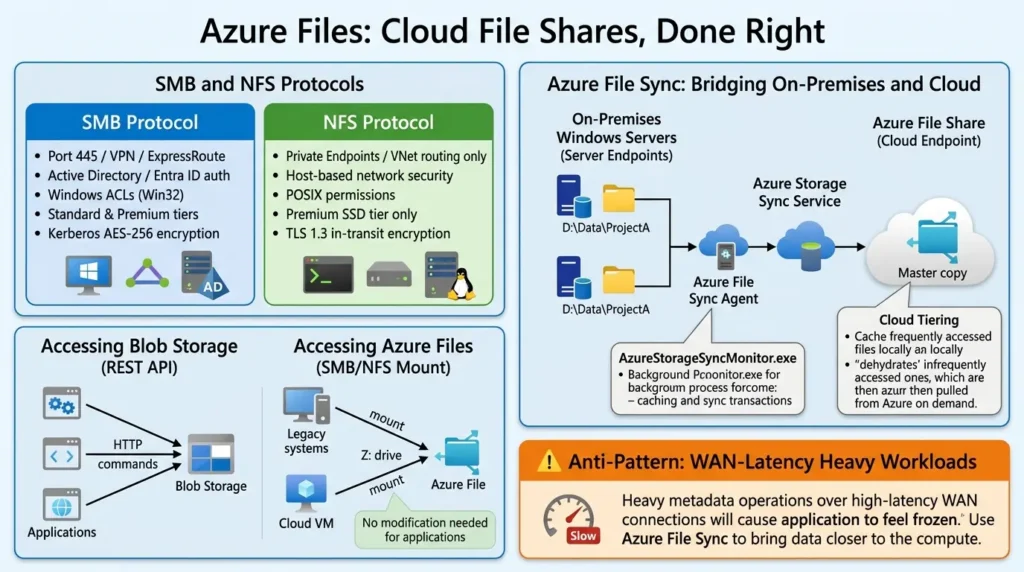
Definition: Azure Files is a fully managed cloud file share service that provides concurrent, multi-client access via industry-standard protocols, SMB (Server Message Block) for Windows environments and NFS (Network File System) for Linux/POSIX workloads. Applications can mount these shares from on-premises datacenters or cloud VMs without modification.
- Port 445 / VPN / ExpressRoute
- Active Directory / Entra ID auth
- Windows ACLs (Win32)
- Standard & Premium tiers
- Kerberos AES-256 encryption
- Best for: Windows workloads, FSLogix, team shares
- Private Endpoints / VNet routing only
- Host-based network security
- POSIX permissions
- Premium SSD tier only
- TLS 1.3 in-transit encryption
- Best for: Linux, POSIX apps, HPC workloads
The key difference from Blob Storage is how you access the data. Blob uses REST APIs. Azure Files behaves like a network drive, you mount it on a machine, and it looks like local storage. Applications need zero refactoring. That is what makes it the go-to choice for lift-and-shift migrations.
A few important security notes: SMB 1.0 should be disabled on all client machines, it is a well-documented attack surface. Enabling the “Require Encryption in Transit” setting blocks SMB 2.1 clients since they do not support transit encryption. If you configure Maximum Security mode requiring AES-256-GCM ciphers, note that Windows clients older than Windows 11 or Windows Server 2022 need manual PowerShell configuration.
For NFS: because it requires SSD-backed storage, it is only available on Premium tier shares. Authentication is handled at the network level through private endpoints and VNet routing, there are no user-based ACLs. The nconnect mount option on Linux allows parallelizing TCP channels to the NFS endpoint, meaningfully improving throughput on high-concurrency workloads.
Standard file shares support both Transaction Optimized, Hot, and Cool sub-tiers, all sharing the same underlying hardware and performance limits of up to 20,000 IOPS and 300 MiB/s.
Azure File Sync: Bridging On-Premises and the Cloud
Here is a scenario you will encounter often: a company has terabytes of files on Windows file servers. They cannot migrate everything overnight, but they want cloud backup, disaster recovery, and eventually full consolidation. Azure File Sync is the solution.
Step-by-step File Sync setup:
- Register your Windows Server with the Storage Sync Service resource in Azure.
- Create a Sync Group, it must contain exactly one Cloud Endpoint (the Azure file share) and one or more Server Endpoints (local paths on registered servers).
- Install the Azure File Sync agent on each server. The background process AzureStorageSyncMonitor.exe handles local caching and sync transactions.
- Optionally enable cloud tiering to dehydrate infrequently accessed local files, the full namespace remains browsable, but cold files are pulled from Azure on demand.
There are important topology rules to follow. A Sync Group can contain only one Server Endpoint per registered server. Multiple directories must sync to distinct Sync Groups. Namespaces must not overlap on the same volume — F:\sync1and F:\sync2 can coexist, but F:\data and F:\data\subfolder will cause synchronization loops and data conflicts.
Network Attached Storage (NAS) paths are unsupported as Server Endpoints. Server endpoints must target local storage volumes. Cloud tiering is also disabled on system volumes, core OS files should never be dehydrated.
During provisioning, the sync service creates a hidden directory called .SystemShareInformation for sync metadata. Modifying or deleting this directory will cause sync failures. Leave it alone.
Storage accounts participating in File Sync must support SMB 3.1.1, NTLM v2, and AES-128-GCM within their SMB security settings.
⚠️ Anti-Pattern: WAN-Latency Heavy Workloads: Do not use Azure Files for applications that perform heavy, chatty metadata operations over high-latency WAN connections. Because SMB is a “chatty” protocol, a high round-trip time (RTT) between the client and the cloud share will make the application feel like it has “frozen.” For such cases, use Azure File Sync to bring the data closer to the compute.
Section Summary: Azure Files bridges legacy file server workflows and cloud-native infrastructure. Use SMB for Windows environments with Active Directory, NFS for Linux/POSIX workloads, and File Sync for hybrid migrations and on-premises caching topologies.
Azure Table Storage: Fast, Scalable NoSQL Without the Overhead
What if you need to store millions, or billions, of records that do not fit neatly into a relational schema? Sensor readings, user profiles, application metadata, telemetry events with variable fields? Azure Table Storage is built exactly for this.
How the Data Model Actually Works
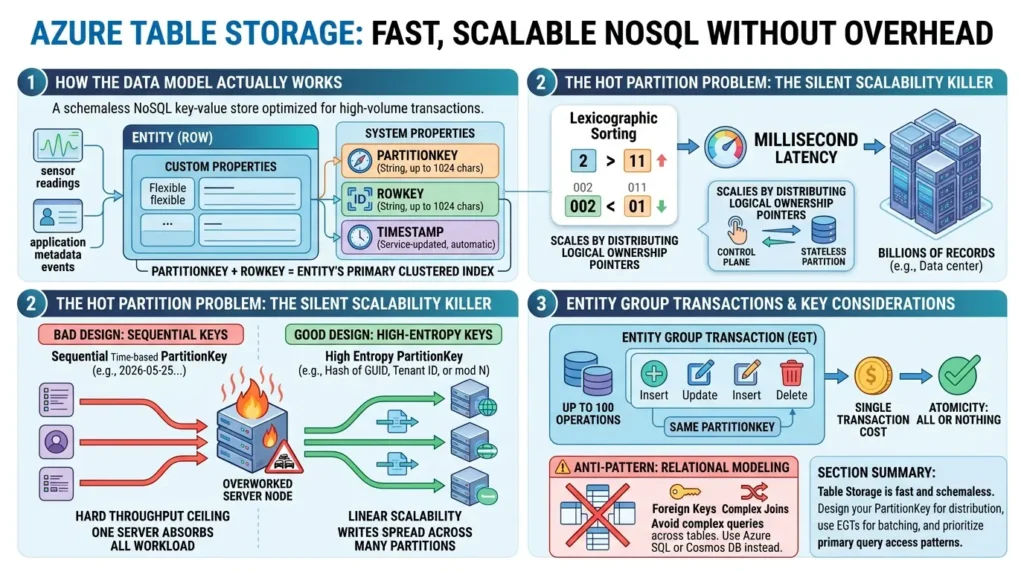
Definition: Azure Table Storage is a schemaless NoSQL key-value store optimized for high-volume transactional workloads. It can hold billions of entities per table with millisecond-latency access for key-based lookups, and scales by distributing data across stateless partition servers that handle logical read and write routing.
The fundamental unit is an entity (think of it as a row). Each entity holds up to 252 custom properties plus three mandatory system properties:
- PartitionKey defines which logical partition the entity belongs to (string, up to 1,024 characters)
- RowKey uniquely identifies the entity within its partition (string, up to 1,024 characters)
- Timestamp automatically updated by the service on every write; not manually settable
Together, PartitionKey and RowKey form the entity’s primary key and construct the table’s single clustered index. Entities are sorted first by PartitionKey in ascending order, then by RowKey, both lexicographically.
That last word is important. Lexicographic sorting means “2” sorts after “11” because “2” > “1” as a string comparison. If you need numeric ordering, you must zero-pad your keys: “002” sorts correctly before “011”. Missing this causes subtly wrong query results that are hard to debug in production.
Unlike a relational database, Table Storage is schemaless. Two entities in the same table can have completely different properties. The only shared requirement is the composite key. Empty strings are valid key values; null values are not.
The Hot Partition Problem: The Silent Scalability Killer
Here is an insight most tutorials skip, and it is one of the most important things you can understand about Table Storage at production scale.
Azure Table Storage scales by distributing data across multiple Partition Servers, stateless compute nodes that process reads and writes. When a single partition receives too many requests and exceeds approximately 2,000 entities per second, the storage control plane can reassign its logical ownership to a different partition server. This migration completes in seconds because no physical data blocks are moved, only routing pointers are updated.
But here is the catch: this auto-balancing engine can only help if your data is spread across multiple partitions. If you are using sequential timestamps as your PartitionKey, for example, a log ingestion pipeline writing “2026-05-25T10:00:01Z”, every write goes to the chronologically latest partition. One partition server absorbs your entire write workload. No rebalancing can fix this. You hit a hard throughput ceiling.
This is a hot partition, and it is the single most common scalability failure in Table Storage deployments. The fix is designing for entropy. High-entropy partition keys distribute writes across many logical partitions, allowing the system to scale horizontally. Good options include:
- A hash of a GUID prefix
- A hash of tenant ID or user ID
- A distributed bucket ID (e.g., entity_id mod N for N buckets)
The goal is that no single partition key value receives a disproportionate share of traffic.
Entity Group Transactions: Atomic Batching at Scale
For write-heavy workloads, Entity Group Transactions (EGTs) are a powerful tool. An EGT lets you execute up to 100 operations, inserts, updates, or deletes, atomically as a single batch. The constraints:
- All entities in the batch must share the same PartitionKey.
- The total payload cannot exceed 4 MiB.
- The entire batch is billed as a single storage transaction.
This dramatically reduces both latency and transaction costs compared to 100 individual round trips, and atomicity guarantees that either all operations succeed or none do.
⚠️ Anti-Pattern: Relational Modeling: Do not attempt to enforce relational integrity or complex joins in Table Storage. It lacks foreign keys, joins, and relational constraints. If your application logic requires complex queries across multiple related datasets, you are essentially trying to build a relational engine on top of a key-value store, use Azure SQL or Cosmos DB instead.
Section Summary: Table Storage delivers fast, schemaless NoSQL at extraordinary scale, but only if your PartitionKey design distributes load evenly. Avoid sequential keys, leverage EGTs for batch writes, and always design your key schema around your primary query access patterns before you write a single row.
Azure Queue Storage: The Glue of Scalable Architectures
Every production application eventually faces this challenge: one component produces work faster than another can process it. You need something in between, a buffer that decouples producers from consumers, absorbs traffic spikes, and ensures no work is lost when a consumer crashes. That is exactly what Queue Storage does.
How Messages Flow: Visibility Timeouts and the FIFO Myth
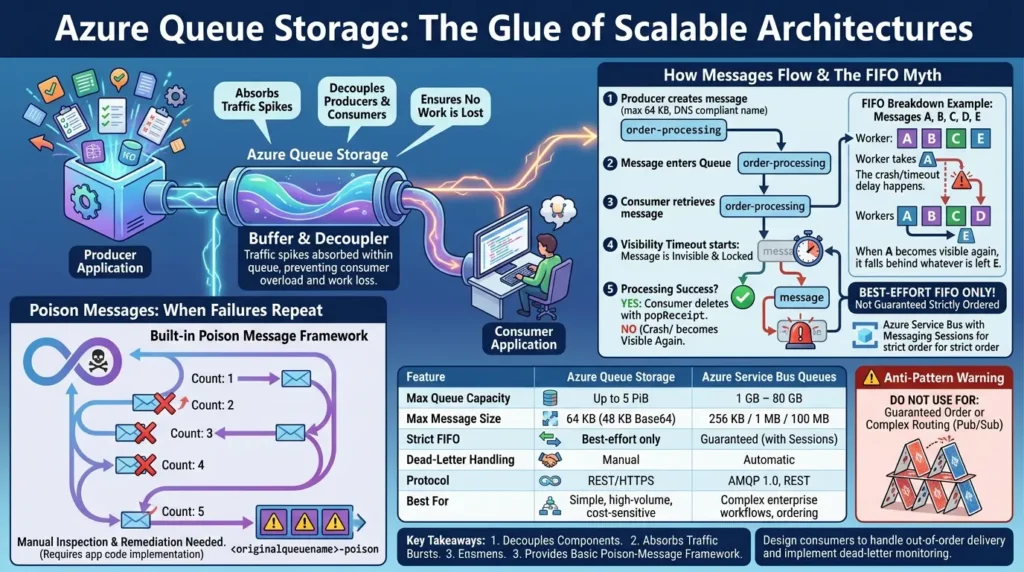
A queue holds messages up to 64 KB in size. Queue names must follow DNS naming rules: lowercase letters, numbers, and hyphens only; between 3 and 63 characters; no consecutive hyphens. When a consumer retrieves a message, it is not immediately deleted. Instead, the message enters a visibility timeout, it becomes invisible to other consumers for a specified duration. This window gives the consumer time to process the message.
If processing succeeds, the consumer deletes the message using its popReceipt.
If the consumer crashes or the timeout expires before deletion, the message becomes visible again in the queue, ready for another consumer to pick up.
Here is what most developers miss: this recovery mechanism breaks FIFO ordering. Suppose five messages are in a queue (A, B, C, D, E). Worker 1 picks up A. Worker 1 crashes. While A’s timeout is running, Workers 2 and 3 process B, C, and D. When A eventually becomes visible again, it falls behind whatever is left in the queue. The original order is gone.
Azure Queue Storage provides best-effort FIFO, not guaranteed strict sequential delivery. If your application requires strict ordered processing, that is a job for Azure Service Bus with Messaging Sessions enabled.
Poison Messages: When Failures Repeat
What happens when a message is simply unprocessable, corrupted payload, unhandled edge case, a dependency that is always unavailable? Without a safeguard, it cycles forever, consuming worker resources and degrading throughput.
Queue Storage handles this through a built-in Poison Message Framework. Every time a message is retrieved, its dequeueCount increments. If a message fails processing after five retrieval attempts, it gets routed to a dedicated dead-letter queue named <originalqueuename>-poison for manual inspection and remediation.
Implementing this is not automatic, your application code (or an Azure Functions binding) must check the dequeueCount and route accordingly. But the mechanism is there, and using it is essential for production queue consumers.
| Feature | Azure Queue Storage | Azure Service Bus Queues |
|---|---|---|
| Max Queue Capacity | Up to 5 PiB | 1 GB – 80 GB |
| Max Message Size | 64 KB (48 KB if Base64) | 256 KB / 1 MB / 100 MB (tier) |
| Strict FIFO | Best-effort only | Guaranteed (with Sessions) |
| Transactions | Not supported | Supported |
| Dead-Letter Handling | Manual (check dequeueCount) | Automatic ($DeadLetterQueue) |
| Protocol | REST / HTTPS | AMQP 1.0, REST |
| Best For | Simple, high-volume, cost-sensitive tasks | Complex enterprise workflows, ordering |
⚠️ Anti-Pattern: Guaranteed Order/Complex Routing: Do not use Queue Storage if your business logic requires strict, guaranteed FIFO (First-In, First-Out) ordering or complex message routing (Pub/Sub). While Queue Storage is excellent for simple buffering, forcing it to handle sequencing or complex transactional workflows will force you to build “workarounds” that are essentially a fragile, manual implementation of Azure Service Bus.
Section Summary: Queue Storage decouples components, absorbs traffic bursts, and provides a basic poison-message framework. Design your consumers to handle out-of-order delivery and always implement dead-letter monitoring for production workloads.
Redundancy and Replication: What Durability Actually Means
You will hear a lot about 11 nines of durability, that is 99.999999999% probability your data will not be lost. Under Geo-Zone-Redundant Storage (GZRS), that climbs to 16 nines. These are extraordinary claims. But what does durability actually mean in practice, and where does it fall short?
All data in Azure Storage is replicated three times within the primary region by default. The redundancy tier determines how far those copies spread.
3 synchronous copies in 1 datacenter. Cheapest. No zone or geo protection.
3 synchronous copies across 3 Availability Zones in 1 region. Survives full datacenter outages.
LRS in primary + async replication to a paired secondary region. Read-only on secondary unless RA-GRS enabled.
ZRS in primary + async replication to paired region. Highest standard durability. Most expensive.
One critically underreported fact deserves attention: geo-replication is asynchronous. Write operations committed to the primary region after the Last Sync Time are at risk of loss during an unplanned failover. The lag is typically under 15 minutes, but it is not guaranteed by SLA.
For a planned failover, Azure can block new writes until all pending data synchronizes to the secondary, ensuring zero data loss. For an unplanned failover, you must evaluate the Last Sync Time metric before initiating, that number tells you exactly how much data is at risk. After any failover, the account is demoted to LRS in the secondary region.
Reconfiguring geo-redundancy requires manual steps and incurs additional transaction costs. The typical execution completes in under one hour.
Redundancy conversion also has constraints worth knowing. Converting from LRS to GZRS directly is not supported as a single operation. You must follow one of two two-step paths: LRS → ZRS → GZRS, or LRS → GRS → GZRS. A minimum 72-hour delay is enforced between consecutive conversions to allow background validation tasks to complete.
Advanced Insight: Azure’s durability advantage comes not just from replication count, but from Local Reconstruction Codes (LRCs), a form of erasure coding that significantly reduces repair I/O after hardware failures. Traditional erasure coding requires reconstructing large stripe sets after a node failure.
LRC minimizes the reconstruction scope, reducing cascading congestion during hardware incidents. Lower repair amplification means faster recovery and less risk from correlated failures. The Azure Storage engineering blog has covered these internal coding innovations, though they rarely appear in mainstream tutorials.
Section Summary: Match your redundancy level to your workload’s risk tolerance. LRS for dev and test, ZRS for in-region high availability, GRS or GZRS for disaster recovery. Never assume geo-redundancy equals zero-loss, the asynchronous replication gap is real and must be accounted for in your RTO/RPO design.
What Most Teams Get Wrong: Five Non-Obvious Failure Modes
Here is the part that rarely makes it into the official tutorials. After examining real-world operational patterns and Microsoft’s distributed systems research, five failure modes stand out as both common and consistently underreported.
Retry Storms: When Recovery Becomes the Problem
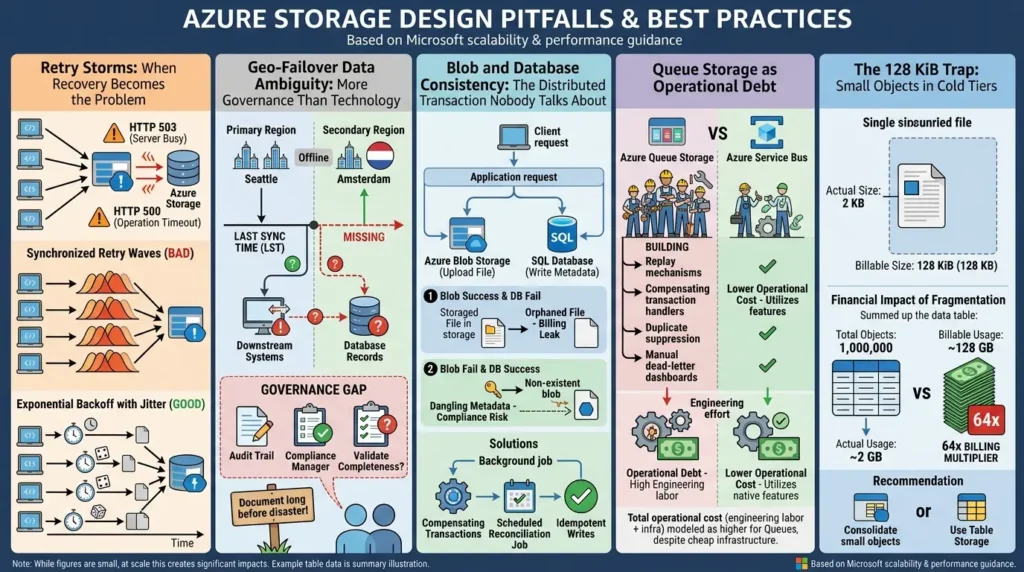
When Azure Storage returns HTTP 503 (Server Busy) or HTTP 500 (Operation Timeout) due to throttling, retry logic kicks in. The danger: if hundreds of clients simultaneously receive throttling responses and retry at the same fixed interval, they create synchronized retry waves that worsen the congestion they are trying to recover from.
The fix is exponential backoff with jitter, add a randomized delay that spreads client retries across time. According to Microsoft’s scalability and performance guidance for Azure Storage, this is a core pattern for any high-throughput storage client.
Geo-Failover Data Ambiguity: More Governance Than Technology
When you initiate a failover after a primary region outage, writes from the window after the Last Sync Time simply do not exist in the newly promoted region. But which downstream systems consumed those writes? What database records reference blobs that are now missing?
This is not just a data problem, it is an audit and compliance problem. Who validates completeness after failover? What constitutes a complete audit trail in a regulated industry? These governance questions should be answered and documented long before any disaster strikes.
Blob and Database Consistency: The Distributed Transaction Nobody Talks About
A common pattern: an application uploads a file to Blob Storage and writes metadata to SQL Database in the same request. These are two separate operations with no shared transaction boundary. If the blob upload succeeds but the SQL write fails, or vice versa, you end up with orphaned blobs or dangling metadata.
At a low scale, this is a minor nuisance. At enterprise scale with millions of objects, it becomes a billing leak, a compliance gap, and an operational nightmare. The solution is compensating transactions, a scheduled job that reconciles blob existence against metadata records and uses idempotent writes that can be safely retried.
Queue Storage as Operational Debt
Queue Storage is cheap. But cheap infrastructure often produces expensive operations. Teams that use it for critical workflows regularly end up building, from scratch, the features that Azure Service Bus already provides: replay mechanisms, compensating transaction handlers, duplicate suppression, and manual dead-letter dashboards.
Before choosing Queue Storage for a business-critical workflow, model the total operational cost including engineering labor, not just the per-message price.
The 128 KiB Trap: Small Objects in Cold Tiers
Ingesting millions of small files—think IoT sensor packets, log entries, or microservice events—and archiving them in Cool, Cold, or Archive tiers is a classic architectural trap. Azure charges for these objects as if they were 128 KiB, regardless of their actual size.
The Financial Impact of Fragmentation
If you store 1,000,000 files at 2 KB each in the Archive Tier (at an estimated cost of $0.00099/GB/month), the difference between actual size and billable size is catastrophic.
| Metric | Actual Data Usage | Billable Usage (128 KiB Rule) |
|---|---|---|
| Total Objects | 1,000,000 | 1,000,000 |
| Size per Object | 2 KB | 128 KB |
| Total Storage | ~2 GB | ~128 GB |
| Monthly Cost | ~$0.002 | ~$0.127 |
Note: While these example figures are small, at petabyte scale or with millions of small objects, this creates a 64x billing multiplier. Always consolidate small objects into larger archives or use a database (like Table Storage) for high-frequency small records.
Common Mistakes and How to Avoid Them
Let’s get specific about the errors that cost teams the most time, money, and reliability.
Mistake 1: Sequential PartitionKeys in Table Storage
Using timestamps as keys creates hot partitions and throttles throughput. Use hashed or randomized keys to distribute writes across partitions.
Mistake 2: Ignoring early deletion penalties in lifecycle automation
A policy that moves blobs to Archive after 30 days (not 180) generates significant penalty fees at scale. Align automation timers to the minimum retention periods for each tier.
Mistake 3: Exposing storage account keys to client applications
Account keys grant full administrative access. For clients, use SAS tokens with limited scopes and short TTLs. For internal services, use Managed Identity with Azure RBAC assignments. The minimum built-in role for blob writes is Storage Blob Data Contributor.
Mistake 4: Treating Archive tier as “just cheap storage.”
Archive is offline. Up to 15 hours for standard rehydration. If your recovery SLA requires faster access, Archive is the wrong tier, use Cold instead.
Mistake 5: Using NFS on a standard storage account
NFS shares require Premium SSD storage. Attempting to create an NFS share on a standard account will fail. Plan your account type before provisioning NFS workloads.
Mistake 6: Overlapping server endpoint directories in File Sync
Two server endpoints on the same volume whose namespaces overlap will create sync loops and data conflicts. Keep endpoint directories strictly non-overlapping.
Workload Placement Framework: Which Service for Which Job
Not sure which service fits your use case? Here is a practical decision guide derived from the architectural patterns covered in this guide.
| Workload | Optimal Service | Key Architecture Rule |
|---|---|---|
| Large-scale analytics / data lakes | Blob + hierarchical namespace (Data Lake Gen2) | Consolidate small files before cooling |
| On-premises file server migration | Azure Files + File Sync | Non-overlapping sync directories per server |
| VM persistent disk storage | Managed Disks / Elastic SAN | Use Premium SSD v2 for IOPS-intensive workloads |
| Scalable metadata / log stores | Table Storage | Avoid sequential timestamp keys; hash partition keys |
| High-throughput background jobs | Queue Storage | Design consumers for out-of-order delivery |
| Enterprise messaging workflows | Azure Service Bus | Use when transactions, strict FIFO, or routing are required |
Before and After: PartitionKey Design
Before: A telemetry pipeline writes sensor events using PartitionKey = “2026-05-25T10:00:01Z”. Every write hits the latest chronological partition. Throughput caps at 2,000 events/second. HTTP 503 errors appear. Scaling the application layer changes nothing.
After: The same pipeline hashes a device ID to generate a bucketed key (“device-bucket-07”). Writes now spread evenly across 16 logical partitions. Throughput scales linearly as device count grows. Zero throttling errors.
Same data, same service, completely different scaling behavior.
Conclusion: Choosing Right, Designing Well
Azure Storage is not one service. It is a platform of specialized tools, each engineered for a specific job. The teams that get the most value from it are not the ones who use the most features, they are the ones who understand the constraints.
Blob Storage handles unstructured data at any scale, with tiered pricing and lifecycle automation. Azure Files brings file share semantics to the cloud, ideal for hybrid and lift-and-shift scenarios. Table Storage delivers fast, schemaless NoSQL, but only if you design keys with care. Queue Storage decouples components and absorbs load, as long as you plan for ordering edge cases and the operational complexity that comes at scale.
The deeper you go into each service, the clearer it becomes that the real design decisions are not about features. They are about trade-offs. Consistency vs. availability. Cost vs. latency. Simplicity vs. operational control.
Understand those trade-offs, and Azure Storage will rarely surprise you.
Ready to architect, optimize, and future-proof your Azure Storage? Use this guide as your blueprint, and revisit as new features and patterns emerge.
Frequently Asked Questions (FAQ)
What is the difference between Azure Blob Storage and Azure Files?
Blob Storage is accessed over HTTP/HTTPS via REST APIs and is ideal for web applications, analytics pipelines, backups, and any scenario where you build the access logic into your code. Azure Files is accessed via SMB or NFS protocols and behaves like a mounted network drive — your existing applications can use it without modification. If you can redesign your application, Blob Storage is generally more mature and scalable. If you need legacy compatibility or shared drive semantics, use Azure Files.
When should I use Azure Table Storage vs Azure Cosmos DB?
Use Table Storage when you need a simple, low-cost, schemaless key-value store with strong consistency within a single partition. It has no secondary indexes and limited query flexibility beyond the primary key. Use Cosmos DB Table API when you need global distribution, automatic indexing across all properties, richer queries, tunable consistency models, or multi-region writes. Cosmos DB costs significantly more, but for global or complex-query scenarios it is the right investment.
Does geo-redundant storage guarantee zero data loss in a failover?
Not always. For planned failovers, Azure blocks new writes until all pending data replicates to the secondary region — that is zero-loss. For unplanned failovers, geo-replication is asynchronous, meaning writes after the Last Sync Time may be lost. The lag is typically under 15 minutes but is not SLA-guaranteed. Always check the Last Sync Time metric before initiating an unplanned failover, and design your application to handle potential data gaps.
What causes hot partitions in Azure Table Storage and how do I fix them?
Hot partitions occur when a single PartitionKey value receives a disproportionate share of read or write traffic — most commonly from sequential timestamp-based keys where every write targets the latest partition. The fix is entropy: use hashed, randomized, or bucket-based partition keys to distribute requests evenly across many logical partitions. Good options include hashing a GUID, bucketing by entity_id mod N, or using a combination of tenant ID and feature group.
When should I use Azure Service Bus instead of Azure Queue Storage?
Use Azure Service Bus when you need any of the following: guaranteed FIFO ordering (via Messaging Sessions), local transaction boundaries across messages, automatic dead-lettering, publish-subscribe topic routing, or message sizes above 64 KB. Queue Storage is the right choice when you need simple, high-volume, cost-effective buffering with no strict ordering requirements and are willing to implement poison-message handling manually.
What is the Archive tier rehydration process and how long does it take?
Archive tier is offline storage — blobs cannot be read directly. Before accessing archived data, you must rehydrate it to an online tier (Hot or Cool) using either Set Blob Tier or a Copy Blob operation. Standard-priority rehydration can take up to 15 hours. High-priority rehydration is faster (typically under 1 hour for blobs under 10 GB) but costs more. Automated lifecycle policies cannot trigger rehydration — it must be initiated manually or through custom application logic.
Can I use NFS with Azure Files on a standard storage account?
No. NFS protocol support in Azure Files requires SSD-backed storage, which means it is only available on Premium file shares provisioned through a Premium storage account. Standard HDD-backed storage accounts do not support NFS. SMB is available on both Standard and Premium tiers. If your Linux workload requires NFS and you provision a standard account, the share creation will fail.
What is the minimum billable size rule for Blob Storage cool tiers, and when does it apply?
Any block blob smaller than 128 KiB stored in Cool, Cold, or Archive tier is billed as a full 128 KiB. This rule was introduced to limit metadata overhead from fragmented small-object workloads. The Hot tier is exempt. This policy applies to new storage accounts starting July 1, 2026, and will be enforced across all storage accounts from July 1, 2027. If you ingest large volumes of small objects, consolidate them into larger files before tiering to avoid a significant billing multiplier.